


 Spectrophotometer
Single Beam UV Visible Spectrophotometer
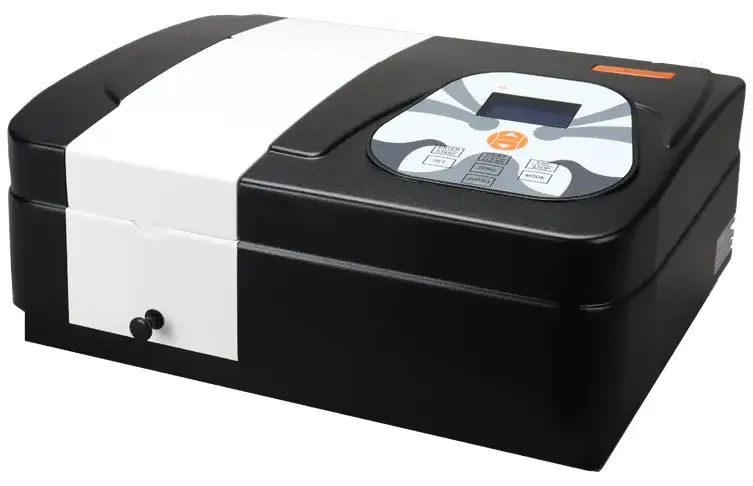
Single Beam UV Visible Spectrophotometer BGF1H2
Spectrophotometer
Single Beam UV Visible Spectrophotometer
Single Beam UV Visible Spectrophotometer BGF1H2
Single Beam UV Visible Spectrophotometer BGF1H2 (BSSUV-201)
Uv-vis Spectrophotometer- Sea, Air, Door to Door Shipping
- 1 Year Warranty
- US & European Standards

Specifications
| Model | BGF1H2 |
| Wavelength Range | 190-1000 nm |
| Bandwidth | 2 nm |
| Wavelength Accuracy | ±1 nm |
| Wavelength Reproducibility | ≤0.3 nm |
| Photometric Accuracy | ±0.5 %T |
| Photometric Repeatability | ≤0.2 %T |
| Straylight | ≤0.05 %T |
| Stability | ±0.001A/h(500nm) |
| Baseline Flatness | - |
| Noise | - |
| Photometric Range | 0-200%T, -0.3-3A, 0-9999C |
| Wavelength setting mode | Automatic |
| Scanning speed | - |
| Output | USB Port |
| Printer port | Parallel Port |
| Display | LCD (128x64) |
| Light Source | Deuterium Tungsten Halogen Lamp |
| Detector | Silicon Photodiode |
| Power | 220V AC ±10%/50Hz or 110V AC / 60Hz |
| Dimension | 420x300x160 mm |
| Weight | 13 kg |
| Automatically bandwidth can be adjusted | - |
Features
Standard quantitative software can directly complete photometric analysis, quantitative tests and processing of analytical data.Can establish calibration curves and implement associated tests. The instrument internal can be stored with 200 groups of data and 200 standard curves.
With the calibration curve method, we can establish multiple-point standard curves directly, on the basis of which we can measure the concentration of the unknown sample.
With the coefficient method, we can implement sample measurement directly after inputting the coefficient of the curvilinear equation.
Automatic wavelength calibration and automatic deviation repair.
Deuterium and tungsten lamps can be changed easily, without adjustment.
Standard with PC software.
Operating Manual
DownloadCHAPTER 1 PREFACE
1. Safety
2. General
3. Electrical
4. Warning
5. Performance
6. Radio Interference
CHAPTER 2 INTRODUCTION OF THE INSTRUMENT
1. Brief Introduction of the Instrument
2. Working Principle
3. Structure
4. Unpacking Instructions
5. Specifications
CHAPTER 3 INSTALL INSTRUMENT
1.Environment Required
2. Installation
CHAPTER 4 OPERATION INTRODUCTION
1. Software Structure
2. Basic Operation
3. Preparation before test
4. Measure
5. System Functions
CHAPTER 5 Instrument Maintenance
1. Daily Maintain
2. Troubleshooting
3. Fuse Replacement
CHAPTER 1 PREFACE
1. Safety
Read the following before installing and using the instrument and its accessories. This instrument should be operated by appropriate laboratory technicians.
2. General
The apparatus described in this manual is designed to be used by properly trained personnel in a suitable equipped laboratory. For the correct and safe use of this apparatus it is essential that laboratory personnel follow generally accepted safe procedures in addition to the safety precautions called for in this manual.
The covers on this instrument may be removed for servicing. However, the inside of the power supply unit is a hazardous area and its cover should not be removed under any circumstances. There are no serviceable components inside this power supply unit. For this instrument, avoid touching the high voltage power supply at all times.
Some of the chemicals used in spectrophotometry are corrosive and/or inflammable and samples may be radioactive, toxic, or potentially infective. Care should be taken to follow the normal laboratory procedures for handling chemicals and samples.
3. Electrical
Before switching on the apparatus, make sure it is set to the voltage of the local power supply (see Installation).
The power cord shall be inserted in a socket provided with a protective earth contact. The protective action must not be negated by the use of an extension cord without a protective conductor.
4. Warning
Any interruption of the protective conductor inside or outside the apparatus or disconnection of the protective earth terminal is likely to make the apparatus dangerous. Intentional interruption is prohibited.
Whenever it is likely that the protection has been impaired, the apparatus shall be made inoperative and be secured against any unintended operation.
Note:NEVER touch or handle the power supply on this instrument due to the high voltage! The protection is likely to be impaired if, for example, the apparatus
▲Shows visible damage
▲Fails to perform the intended measurements
▲Has been subjected to prolonged storage under unfavorable conditions
▲Has been subjected to severe transport stresses
5. Performance
To ensure that the instrument is working within its specification, especially when making measurements of an important nature , carry out performance checks with particular reference to wavelength and absorbance accuracy. Performance checks are detailed in this manual.
6. Radio Interference
For compliance with the EMC standards referred to in the EC Declaration of Conformity, it is necessary that only shielded cables supplied by us are used when connecting the instrument to computers and accessories.
CHAPTER 2 INTRODUCTION OF THE INSTRUMENT
1. Brief Introduction of the Instrument
This instrument is a single beam, general purpose instrument designed to meet the needs of the Conventional Laboratory, This instrument is ideal for various applications, such as: Chemistry, Biochemistry, Petro-chemistry, Environmental Protection, Food and Beverage Labs, Water and Waste Water Labs and other fields of quality control and research.
This instrument incorporates a 128x64 dots matrix LCD display for photometric results, easy operation and wavelength range of 200nm to 1000nm. This instrument is ideal for measurements in the visible and ultraviolet wavelength region of the electromagnetic spectrum.
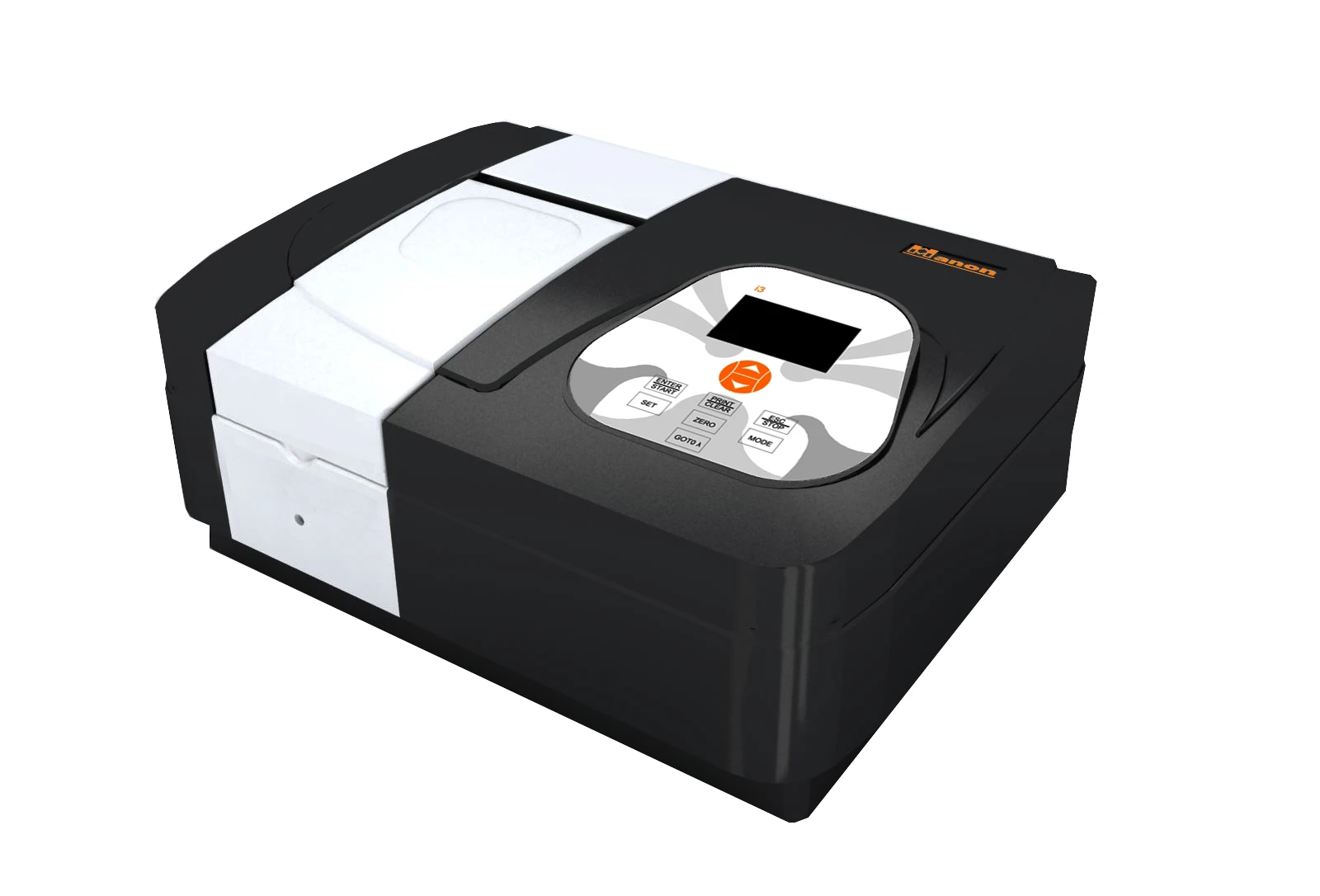
Fig 2-1 Front View
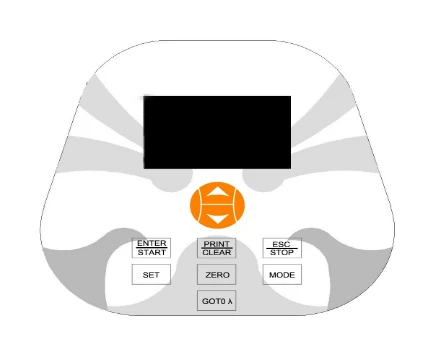
Fig 2-2 Control Panel
2. Working Principle
Different matter has different but special absorbance wavelength point. Also, when at the fixed wavelength point, the absorbance has some relation to the substance's (Always transparent Solution) concentration and its thickness. The relation can be concluded as the following Formula which is called Lambert-Beer Law.
T= I/Io
A=KCL= -log I/Io
A Absorbance
C Concentration of the Solution
K Absorbance Coefficient of the Solution
L The length of the Solution in the light path
I The intensity of the light focused on the A/D after it permeate the solution to be measured.
Io The intensity of the light focused on the A/D after it permeate the Solution.
Note: When test, the solvent is usually taken as the Reference Solution and its Transmittance is considered as 100%T. While the Transmittance of the sample to be tested is a relative value which is got comparing to that of the Reference.
3. Structure
The spectrophotometer consists of five parts:
1. Halogen or deuterium lamps to supply the light;
2. A Monochromator to isolate the wavelength of interest and eliminate the unwanted second order radiation;
3. A sample compartment to accommodate the sample solution;
4. Detector to receive the transmitted light and convert it to an electrical signal; and
5. A digital display to indicate absorbance or transmittance. The block diagram (Fig 2.4) below illustrates the relationship between these parts.
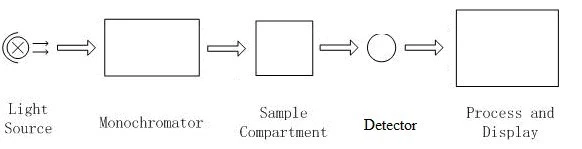
Fig 2.4 Block diagram for the Spectrophotometer
In your spectrophotometer, light from the lamp is focused on the entrance slit of the mono-chromator where the collimating mirror directs the beam onto the grating. The grating disperses the light beam to produce the spectrum, a portion of which is focused on the exit slit of the mono-chromator by a collimating mirror. From here the beam is passed to a sample compartment through one of the filters, which helps to eliminate unwanted second order radiation from the diffraction grating. Upon leaving the sample compartment, the beam is passed to the silicon photodiode detector and causes the detector to produce an electrical signal that is displayed on the digital display.
4. Unpacking Instructions
Carefully unpack the contents and check the materials against the following packing list to ensure that you have received everything in good condition.
Packing List
---------------------------------------------------------------------------------DescriptionQuantity
Spectrophotometer…………………………………………………………….1
Power Cord………………………………………………………………………1
1cm Glass Cuvettes…………………………………..………………………….1 Set of 4
1cm Quartz Cuvettes…………………………………...………………. ………1 Set of 2
User's Manual…………………………………………………………………… 1
Dust Cover……………………………………………………………………… 1
Note: The Printer mentioned in this manual is an optional accessory, it does not come standard with the instrument.
5. Specifications
Wavelength Range | 190-1000nm |
Band Width | 2nm |
Wavelength Accuracy | ±1nm |
Wavelength Repeatability | 0.5nm |
Wavelength Setting | Auto |
Photometric Accuracy | ±0.5%T |
Photometric Repeatability | 0.3%T |
Photometric Display Range | 0-200%T, -0.3-3.0A, 0-9999C |
Stability | 0.002A/h @ 500nm |
Stray Light | ≤0.3%T@220nm, 360nm |
Data Output Port | USB |
Printer Port | Parallel Port |
Display | 128*64 Dots LCD |
Lamps | Deuterium Lamp & Tungsten Halogen Lamp |
Detector | Silicon Photodiode |
Power Requirement | AC85~250V |
Dimension (L*W*H) | 420*280*180mm |
Weight | 11kg |
CHAPTER 3 INSTALL INSTRUMENT
1.Environment Required
To ensure the best performance, the following conditions are required:
- The best working temperature range is 16-30°C and the humidity is 45-80%.
- Keep it as far as possible away from the strong magnetic or electrical fields or any electrical device that may generate high-frequency fields.
- Set the unit up in an area that is free of dust, corrosive gases and strong vibrations.
- Remove any obstructions or materials that could hinder the flow of air under and around the instrument.
- The power requirement is AC85V~265V.
- Use the appropriate power cord and plug into a grounded outlet.
- If the local voltage is not stable enough, a Power Stabilizer is required.
- Be away from direct sunlight
2. Installation
Step 1: Check the packing list
Unpack the contents, check the materials with the Packing List. Any damage or Lost found, please contact us or the local dealer.
Step 2: Position
Place the instrument on the stable table carefully.
Step 3: Install printer (Optional)
Make sure the printer is power off, link the printer's data cable to the instrument's parallel port.
Step 4: Link the power cord
Make sure the instrument's power switch is in the Off condition, link the power cord to the instrument and insert another end in the socket provided with a protective earth contact.
Step 5: Switch on the power
Check again, make sure that all the links are right. Switch on the power. The instrument can be used to measure after self-test and pre-warm.
CHAPTER 4 OPERATION INTRODUCTION
1. Software Structure
1.1 Main Interface
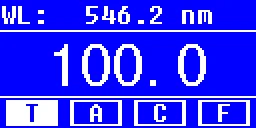
Fig 4-1 Main Interface
After 20 minutes' warm-up, the system goes into main interface. (Fig.4-1) Press the key of  to change the functions.
1.2 Firmware Functions
The firmware consists of 5 functions: T, A, C, F and system functions
1) T
To measure the Transmittance of a sample in a fixed wavelength point. The test result can be stored in the RAM, total 200 groups of data can be stored.
2) A
To measure the Absorbance of a sample in a fixed wavelength point. The test result can be stored in the RAM, total 200 groups of data can be stored.
3) C-Standard Curve Method
Set up standard curve by standard samples; use the new curve to measure the unknown sample's concentration. The curves and the test results can be stored in the RAM. Total 200 curves can be stored.
4) Coefficient Method
Input the values of the curve equation's coefficient, and then measure the unknown sample's concentration.
5) Setup-System Functions
Press the key of  on the keypad to go into system functions (Only available in T MODE and A MODE). Light source management; Get Dark Current; Calibrate Wavelength and Load default, etc.
2. Basic Operation
2.1 Set Wavelength
In the measurement  to go into wavelength setting Interface. Use Arrow Key to increase or decrease the value of wavelength,then
  to confirm. When arriving at the setting wavelength point, it sets 100%T/0Abs automatically.
2.2 Delete the test result and stored data
In the measurement Interface,press  to delete the test result and stored data.
2.3 Calibrate 100%T/0Abs
Put the Reference in the light path, press  to calibrate 100%T/0Abs。
2.4 Text BoxMeasure the samples
Put the samples in the light path and press  Print the test result to measure.
2.5 Print the test result
In the Measurement Interface, press  to print the result.
3. Preparation before test
3.1 Switch on the instrument and begin the system self-test(Diagnostic Program)
Make sure to remove all the blocks in the light path; Close the compartment lid and switch on the power; Then the system will begin self-test.
Note: During the course of Diagnostic Program runs, please DON'T open the lid of the compartment!
3.2 Pre-warm
When the diagnostic program finished, it goes into pre-warm condition. 20 minutes is required before measure.
3.3 Check the Cuvettes
The cuvette should be clear and there's no solution remains on the transparent surface. If the wavelength is below 340nm, Quartz Cuvette is a must.
4. Measure
4.1 T-Mode
Step 1, Go into T Mode Interface
In the Main Interface  , Key to move the cursor on "T" , you'll see the current sample's T% value. Press
  to go into Continuous Measurement Interface.(Fig. 4-2)
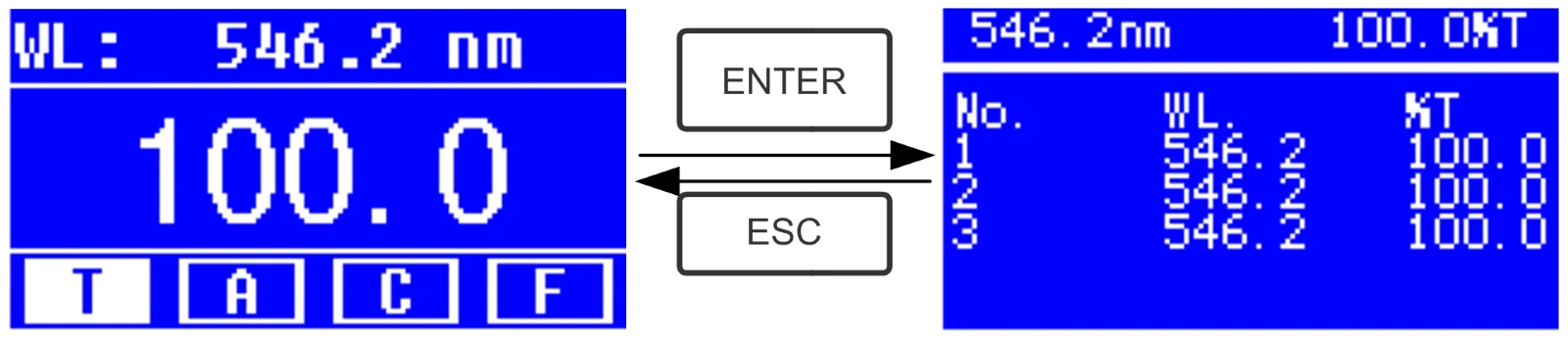
Fig. 4-2
Step 2, Set Wavelength
Press  to set Wavelength,input the wavelength value by the Arrow Key, then press
  to confirm.(Fig. 4-3)
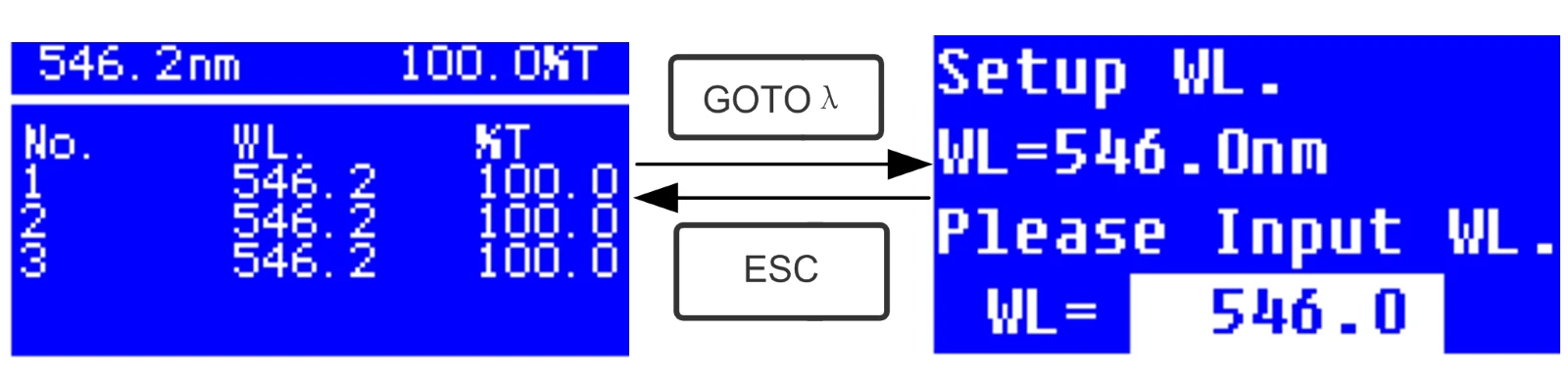
Fig. 4-3
Step 3, Calibrate 100%T/0Abs
Put the Reference Solution in the light path,press  to calibrate 100%T/0Abs;
Step 4, Measure Sample
Put the unknown concentration sample in the light path, press  to measure,and the result displays in the data sheet. At the same time, the test result will be stored in the RAM automatically.
Repeat this step to finish all the samples measurement.
Step 5, Print or Delete the data
Press  to go into the following interface.(Fig.4-4)
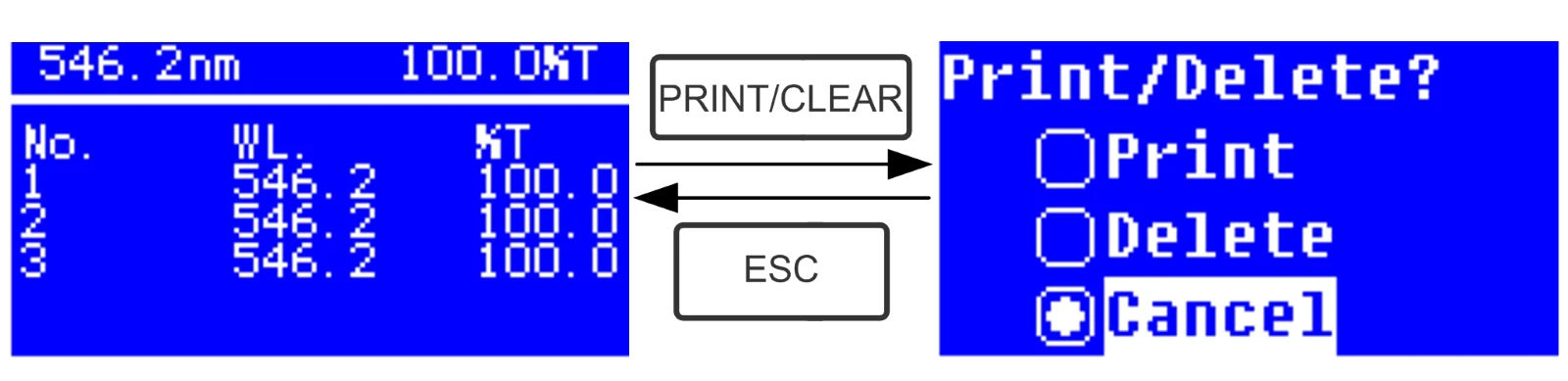
Fig.4-4
1. When the optional Printer is linked to the instrument, if you want to print out the test result, use Arrow Key to choose "Print", then press  to confirm. After printing, the data will be deleted from the RAM
2. If you want to delete the saved data, move the cursor on the item of "Delete", then press to confirm.
4.2 A-MODE
Step 1, Go into A Mode Interface
In the Main Interface, press  Key to move the cursor on "A" , you'll see the current sample's Absorbance value.
Press  to go into Continuous Measurement Interface.(Fig. 4-5)
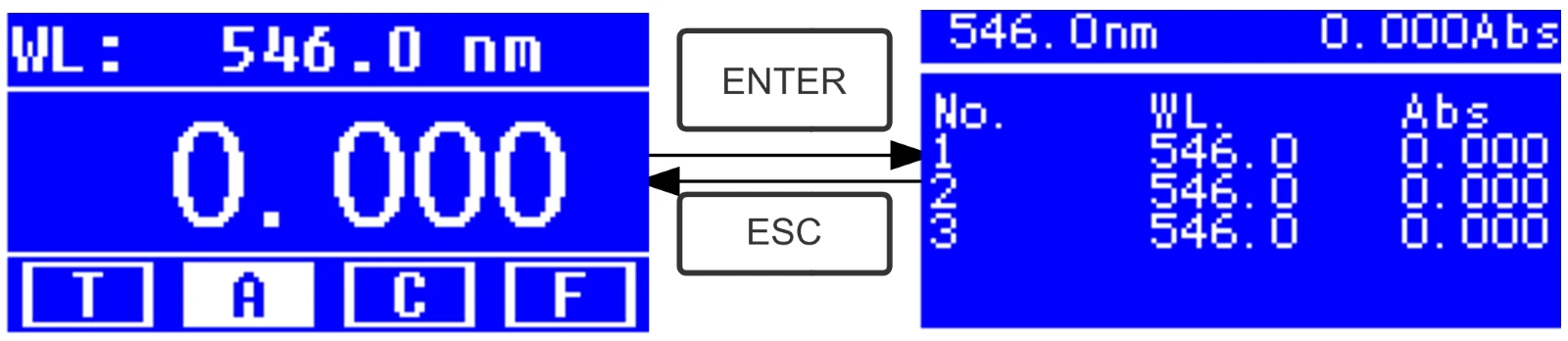
Fig.4-5
Step 2-5 is the same as T-mode, please refer to the corresponding operation in 4.1.
4.3 C-MODE (Standard Curve)
1. Go into C-MODE Interface
In the Main Interface, press Arrow Key to move the cursor on "C", then you'll see the following Interface. (Fig.4-6) Here you can create a new curve, or you can load a saved curve. If you want to delete a saved curve, just choose "Delete Curve".
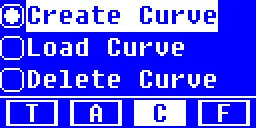
Fig. 4-6
2. Create Curve
If you want to create a new standard curve by several standard samples, Use Arrow Key to move the cursor on "Create
Text BoxCurve", then press  to confirm. The system will ask you to input the quantity of your standard samples. (Fig.4-7)
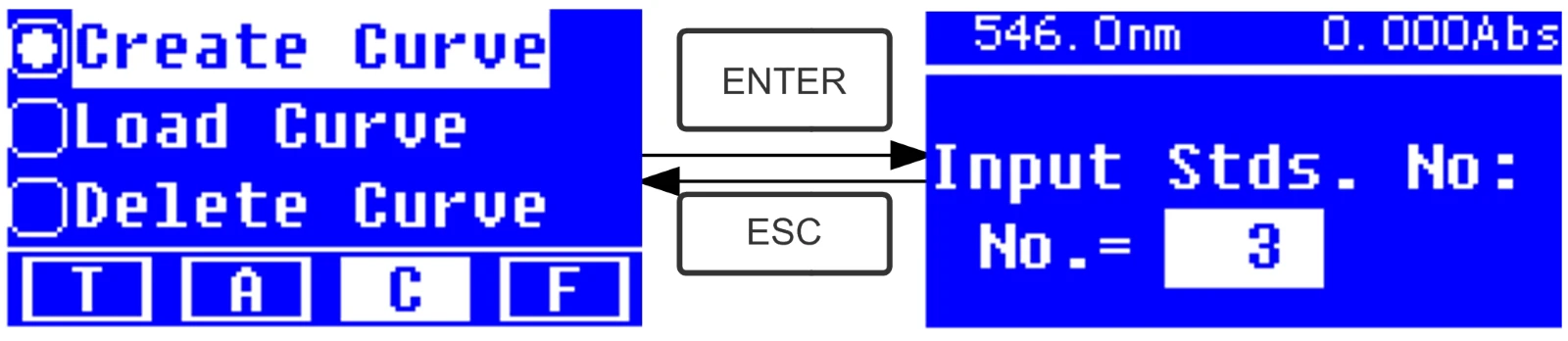
Fig.4-7
Note: The default quantity is "3". Please don't change the value at this time, you should set the Wavelength at first.
Step 1, Set Wavelength
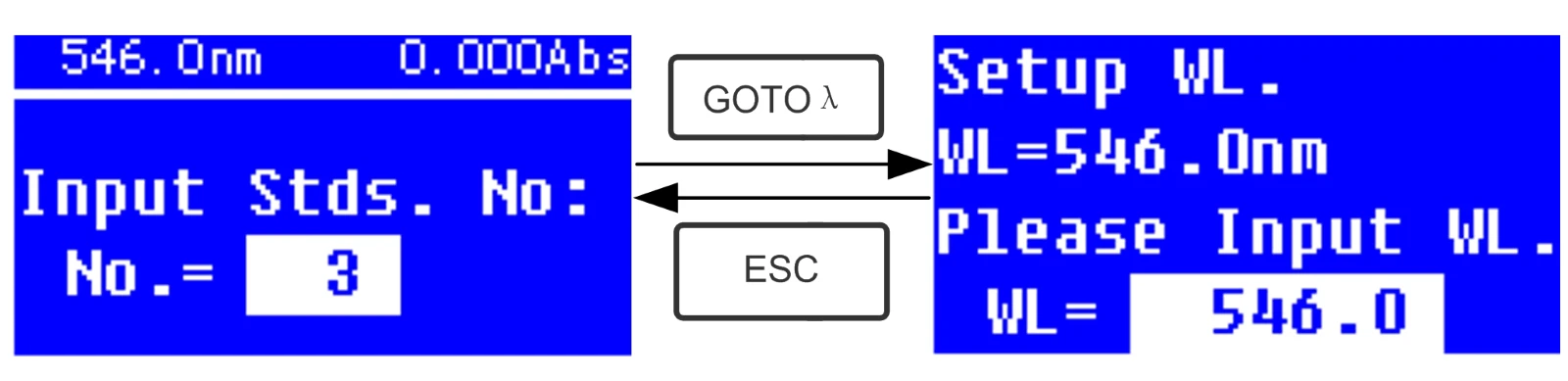
Fig. 4-8
Press  to go into the wavelength setting interface,input the WL. Value by the Arrow key and press
  to confirm.(Fig. 4-8)
Step 2, Input the quantity of the standard samples
Use Arrow Key to input the quantity of the standard samples, then press to confirm. The system will go into the following interface. (Fig. 4-9)
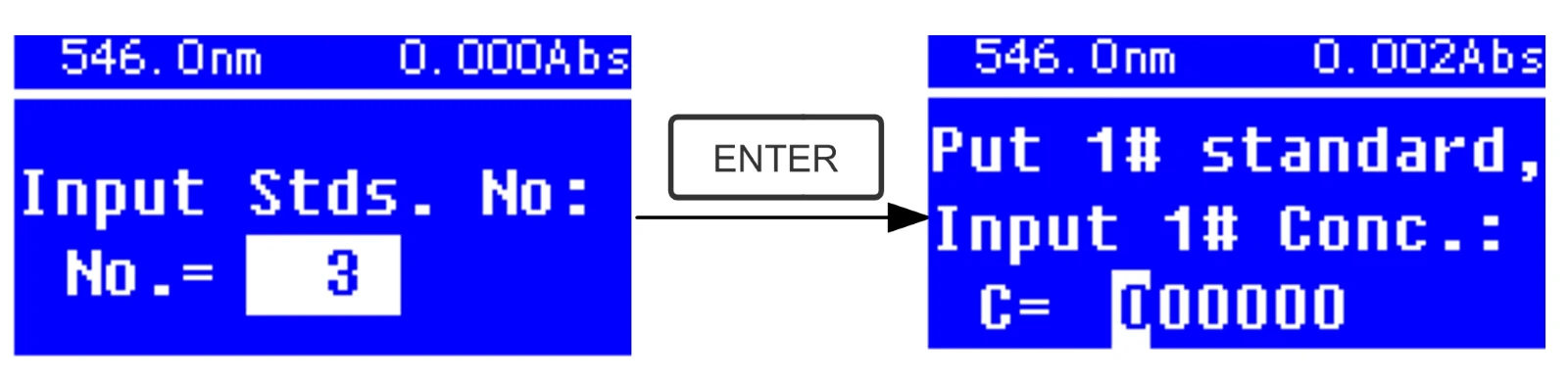
Fig. 4-9
Step 3, Calibrate 100%T/0Abs
Put the Reference Solution in the light path,then press  to calibrate 100%T/0Abs
Step 4, Input Standard Samples'Concentration
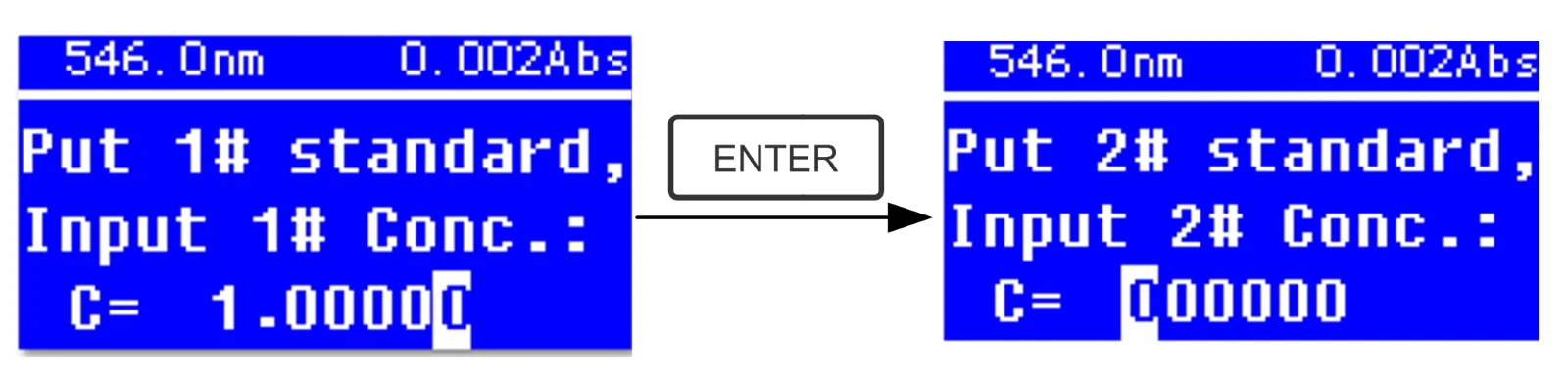
- Pull the 1# Standard Sample in the light path and input the value of its concentration by the Arrow key, then press  to confirm. The system will go into the next interface. (Fig.4-10)
- Pull the 2# Standard Sample in the light path and input its concentration, then press 
to confirm.
- Repeat the above step till the last sample's concentration is finished.
Step 5, Display the Curve
When the last standard sample finished, double press  to confirm. then the Standard Curve and its equation will display on the screen automatically. (Fig. 4-11) At the same time, the Curve Equation will be saved in the RAM automatically.
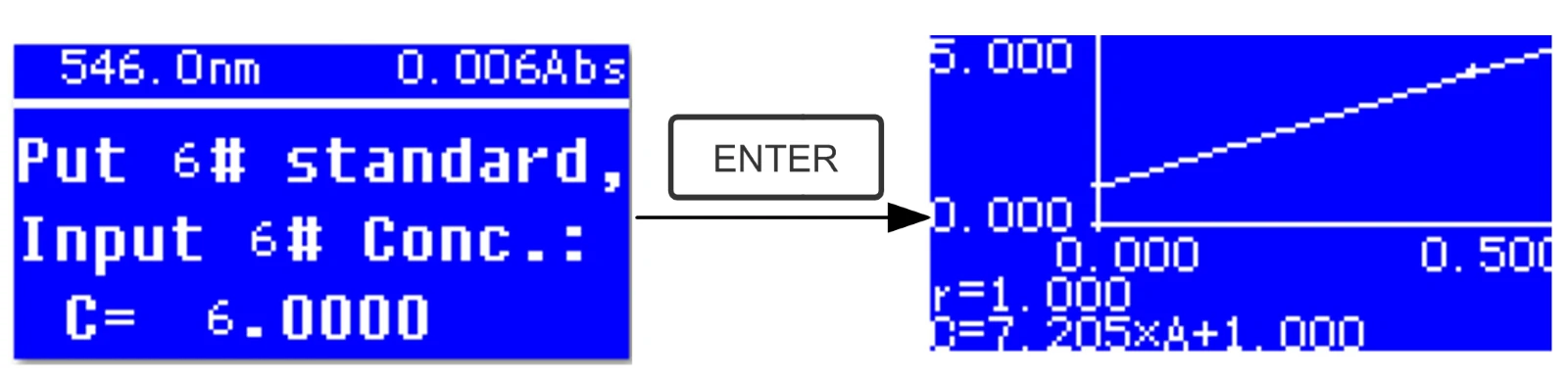
Fig. 4-11
Note: If there's some mistake during the operation, the system will beep 3 times and return the initial interface automatically. Of course, the curve can not be displayed on the screen.
Step 6, Measure Samples
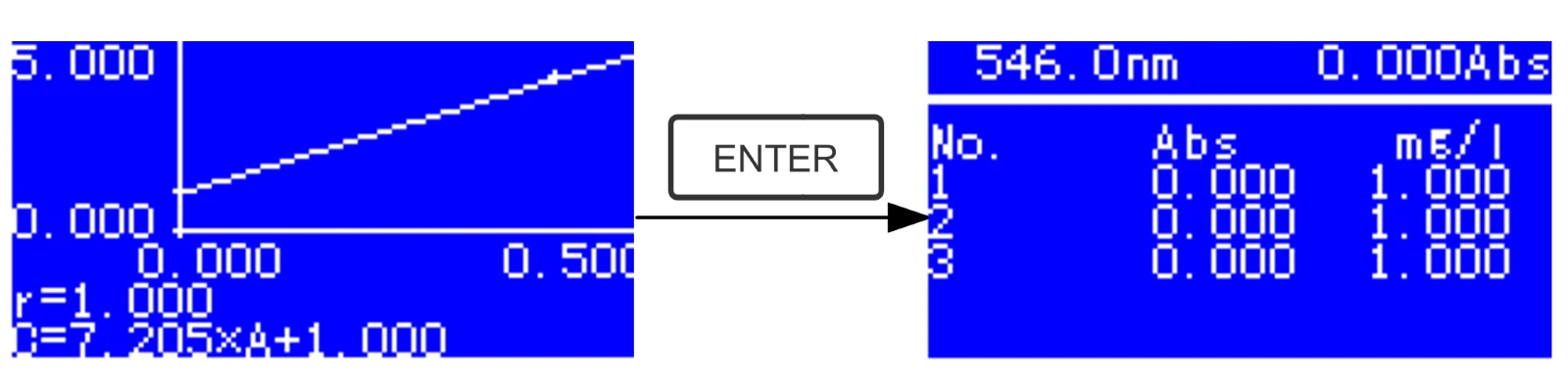
Fig. 4-12
- Pull the Reference solution in the light path and press  to go into the continuous measurement interface. (Fig. 4-12)
- Pull the unknown sample in the light path, then press  Text Boxto measure.
The result will be displayed on the screen one by one. At the same time, the data will be saved in the RAM automatically. Total 200 groups of data can be saved.
3. Load Curve
All the curve equations will be saved in the RAM automatically. If you want to reload the saved curve, just follow the following steps:
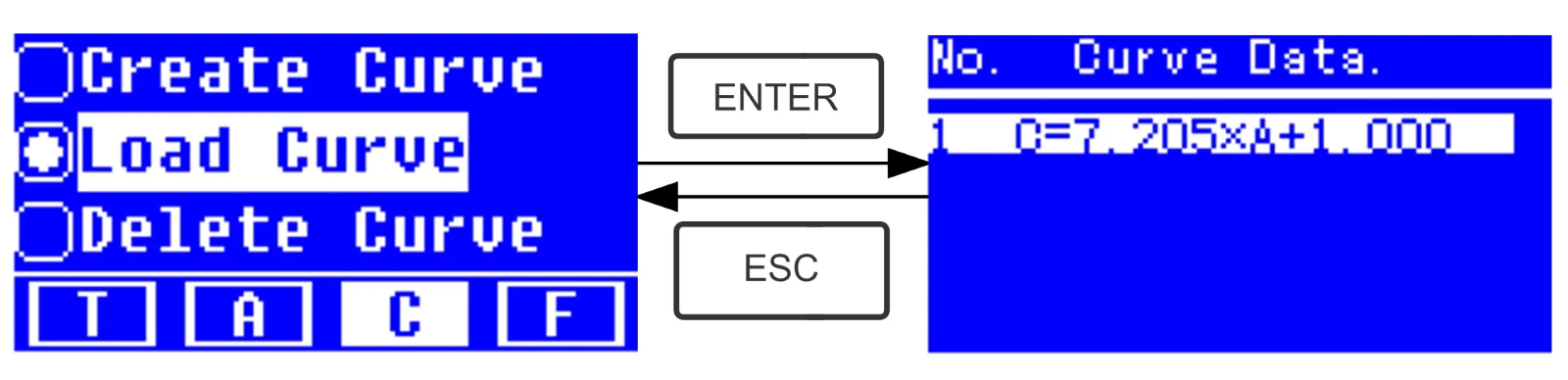
Fig. 4-13
- Move the cursor on "Load Curve" and press to confirm. Then the system will go into the curve equation record interface.(Fig. 4-13)
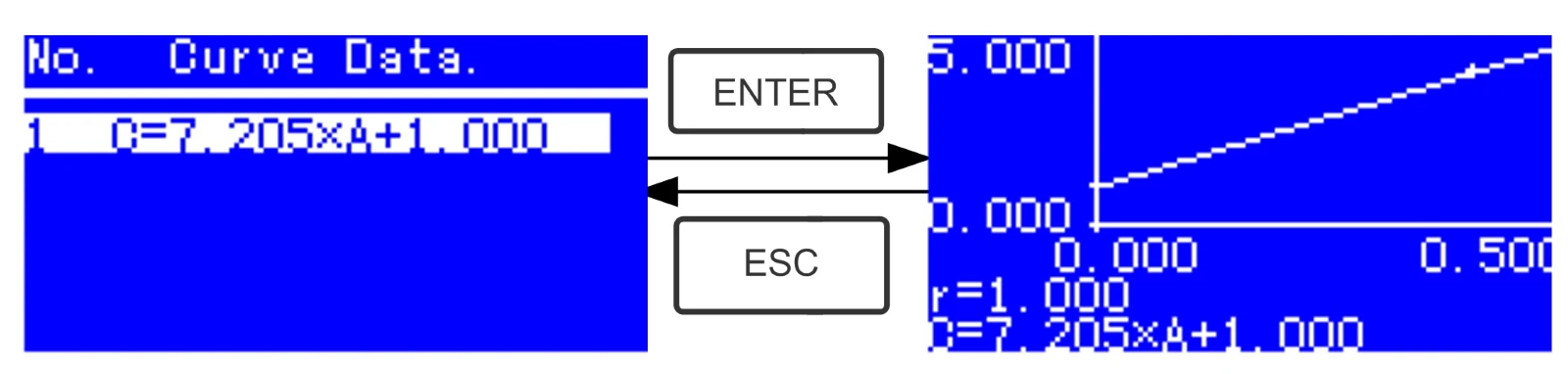
Fig. 4-14
Move the cursor on the equation that you need and press to confirm. Then the corresponding curve will display on the screen. (Fig. 4-14)
Press  to go into sample continuous measure interface and measure samples. (Fig. 4-12)
Note: When you reload the curves, the wavelength will be set at the point where you creat the Standard Curve automatically.
4. Delete Curve
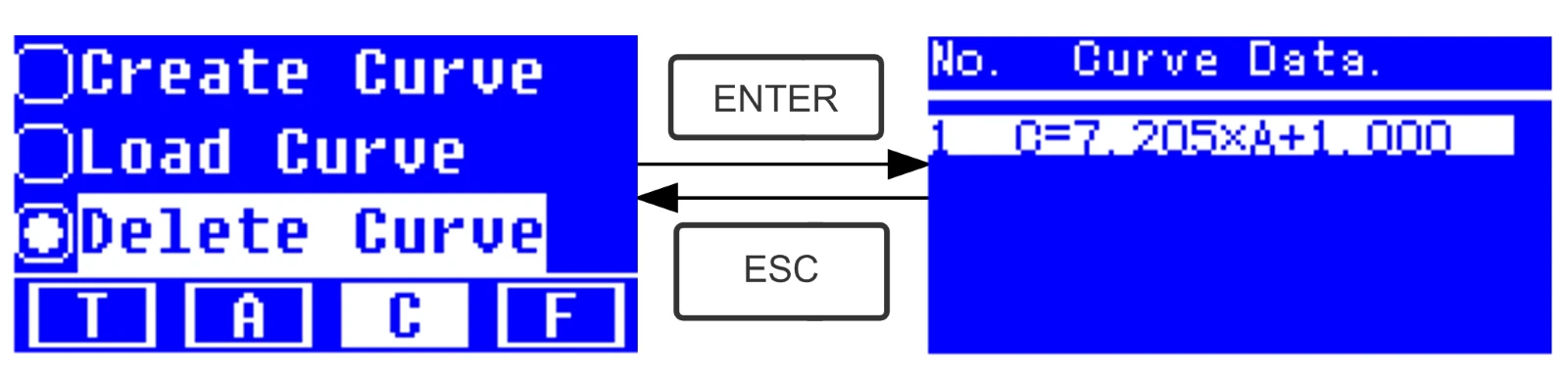
Fig. 4-15
Move the cursor on "Delete Curve" and press  to confirm. Then the system goes into the curve equation choosing interface. (Fig. 4-15)
- Move the cursor on the curve equation that you want to delete and press , then system will ask you to confirm again. (Fig. 4-16)
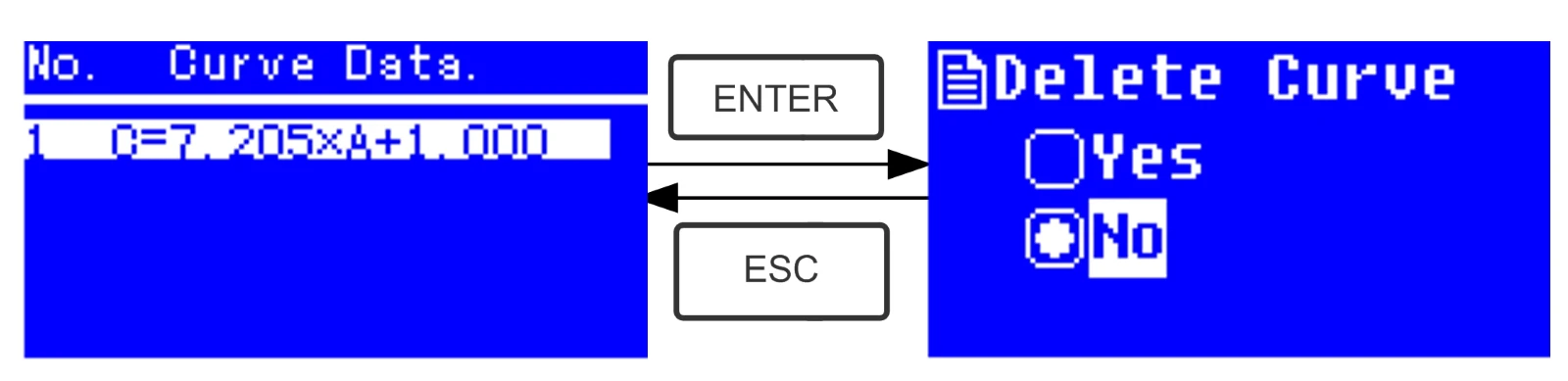
Fig. 4-16
- Move the cursor on "Yes" and press  to confirm, then the curve equation will be deleted. If you don't want to delete it, just choose "
  " or press to return.
4.4 F-MODE (Coefficient Method)
1) Go into F-MODE Interface
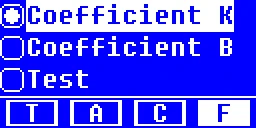
Fig. 4-17
Press Arrow Key to choose "F" in the Main Interface, and you'll see the following Interface. (Fig. 4-17)
2) Parameter Setting
- Use Arrow Key to move the cursor on "Coefficient K" and press  to go into K setting interface.Fig. 4-18;Input every bit of K by Arrow Key and press to confirm. When the last bit finished, system will return the former Interface automatically.
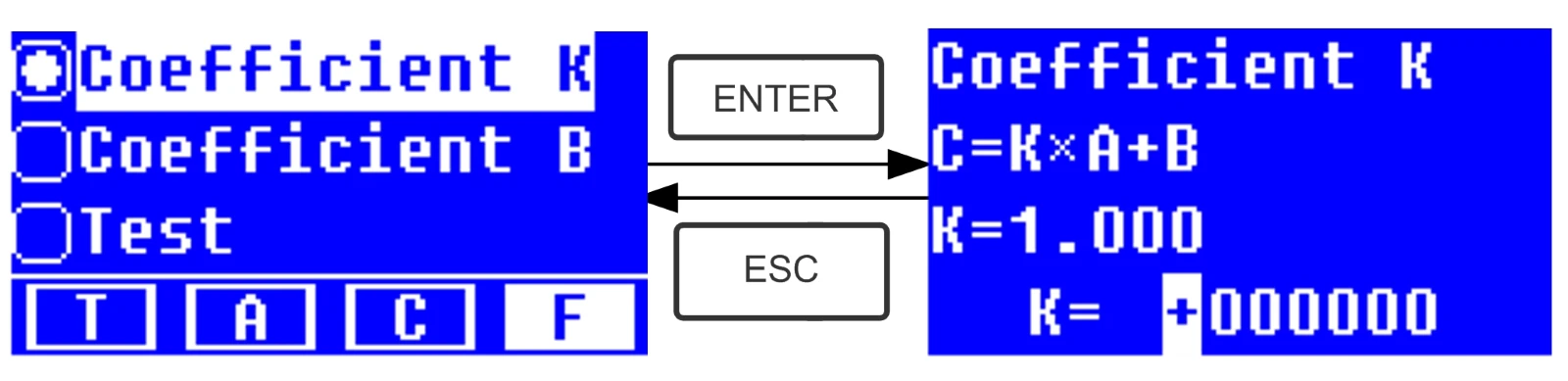
Fig. 4-18
- Input the value of B in the same way(Fig. 4-19)
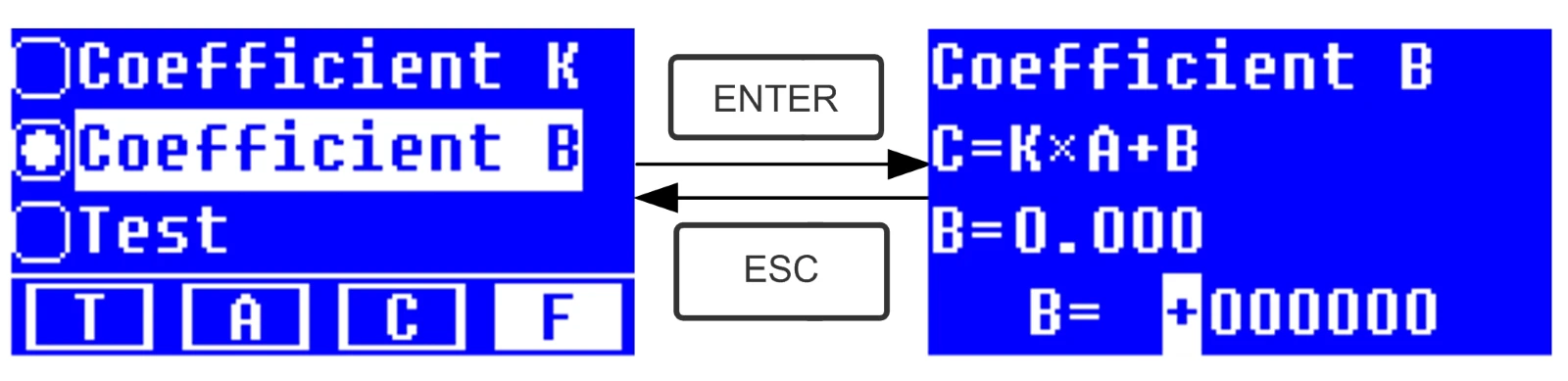
Fig.4-19
3) Test Samples
Step 1, Go into pre-test Interface
Move the cursor on "Test", then press  to go into pre-test Interface. (Fig.4-20)
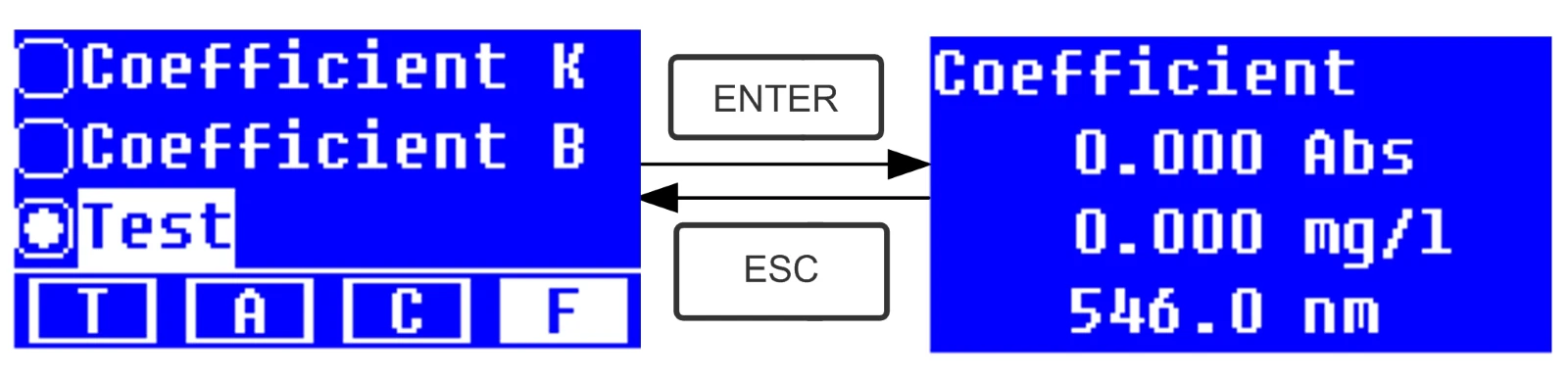
Fig.4-20
Step 2, Set Wavelength
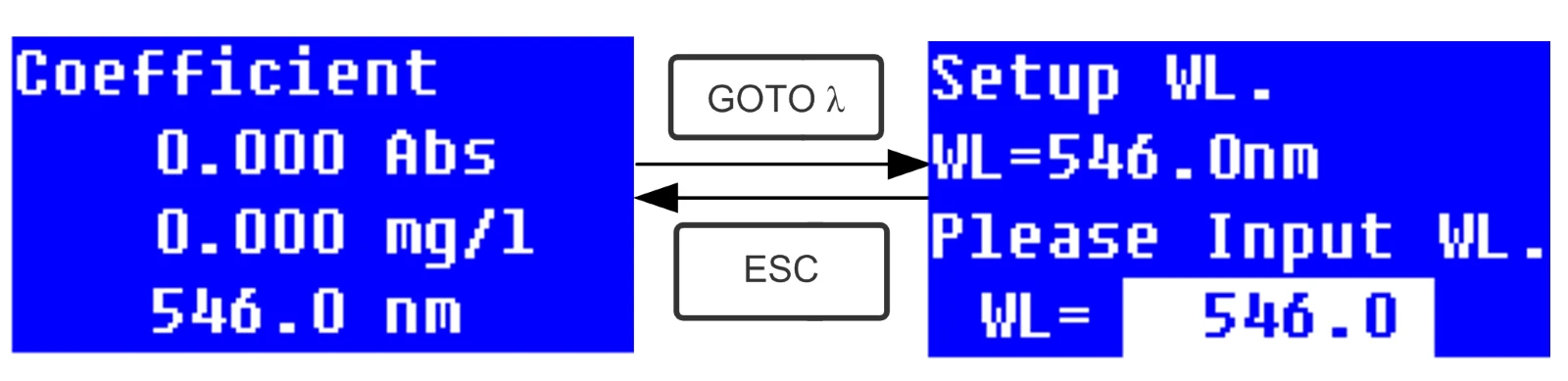
Fig. 4-21
Press  to go into wavelength setting interface,input the wavelength value by Arrow key and press to confirm. (Fig. 4-21)
Step 3, Calibrate 100%T/0Abs
Press  to go into continuous measurement interface (Fig. 4-22). Pull the Reference Solution in the light path,then press
  to calibrate 100%T/0Abs;
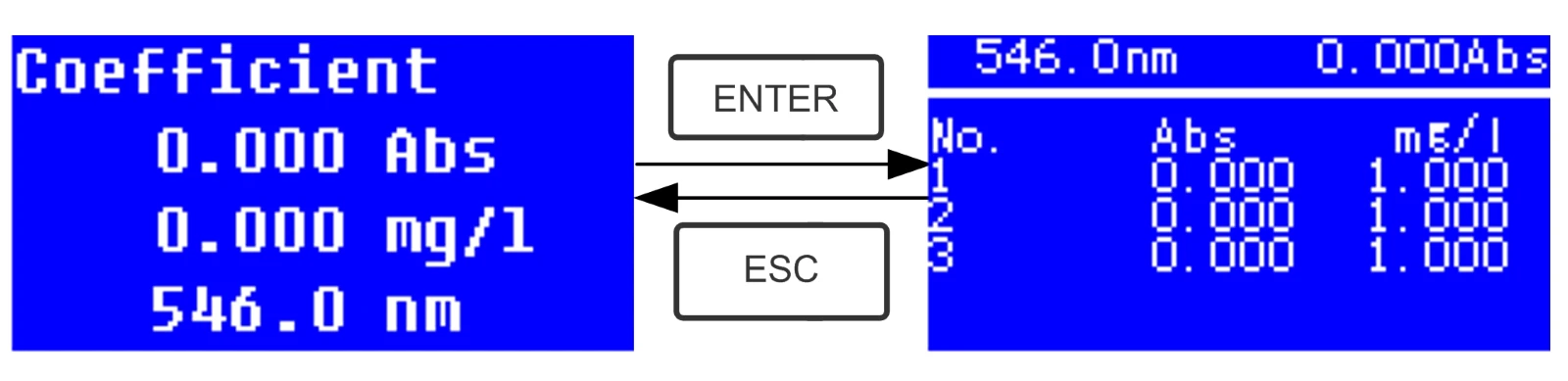
Fig. 4-22
Step 4, Measurement
Pull the samples to be measured in the light path, press  to measure, then the result will be displayed on the screen . Repeat this step to measure other samples. All the test results will be listed on the screen and stored in the RAM automatically. They can be reload even after a sudden power cut.
Step 5, Print or Delete the Test Result
In the continuous measurement interface, press  In the T mode or A mode of Main Interface, press functions(Fig. 4-23),4.1 for details.
5. System Functions
In the T mode or A mode of Main Interface, press functions(Fig. 4-23)to print or delete the test result. Please refer to Chapter Key to go into system 
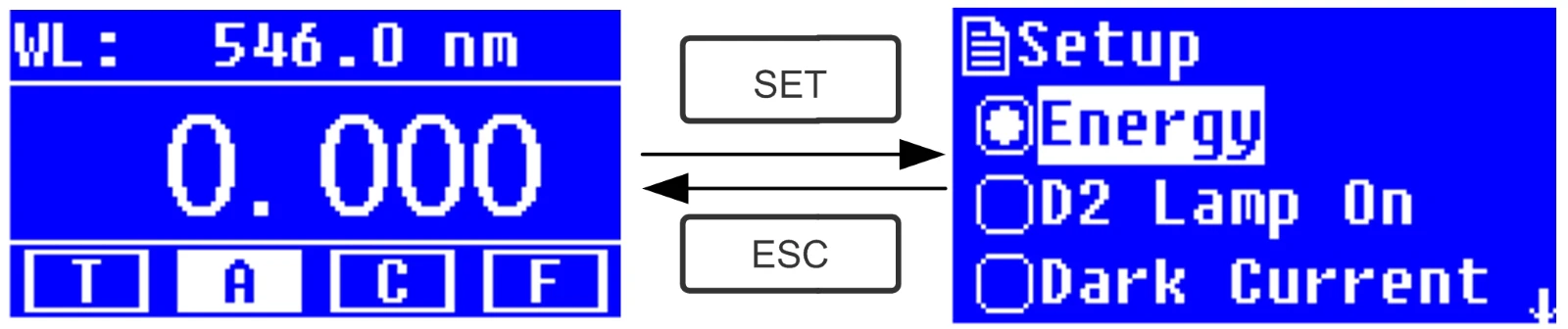
Fig. 4-23
1) Energy
To see the energy of present wavelength. Move the cursor on "Energy", then press  Text Boxto confirm. (Fig.4-24)
Note: Users seldom use this function. It's useful for service man to judge the fault.
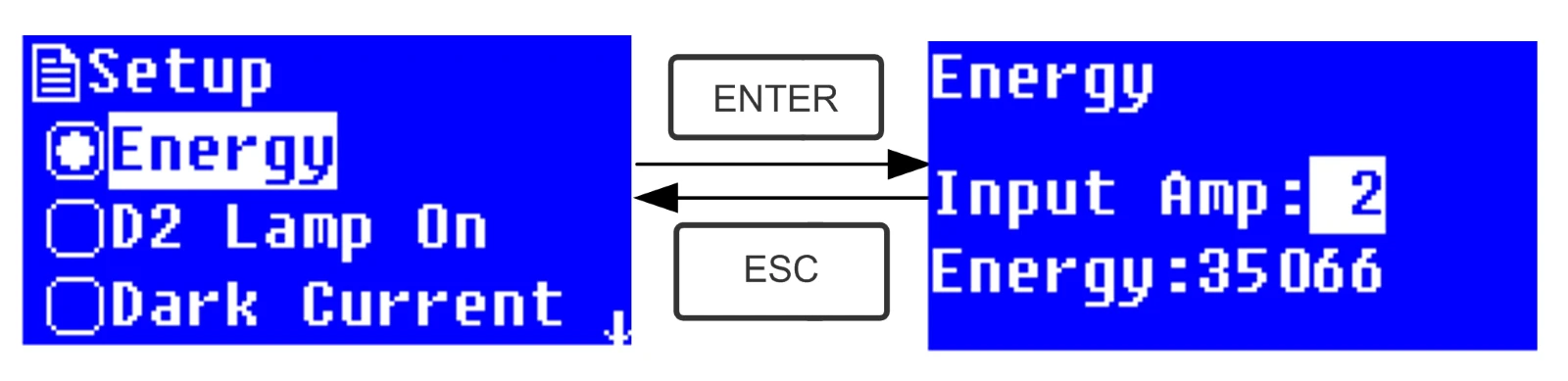
Fig. 4-24
2) D2 lamp management
 When the wavelength point needed is in the range of 340-1100nm , the D2 lamp can be switched off to prolong its life time.
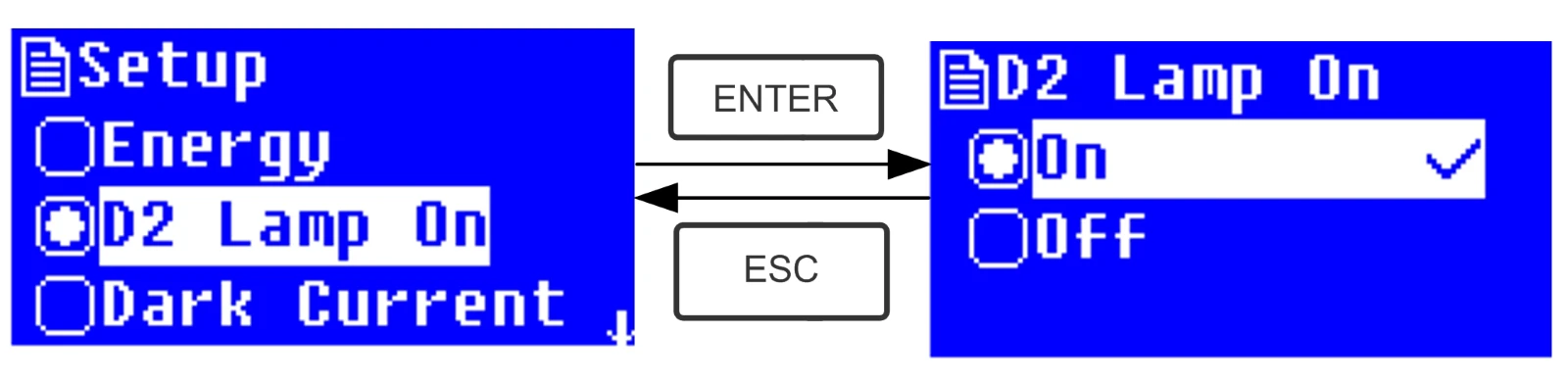
Use Arrow key to choose "D2 Lamp On" and press  to go into D2 lamp setting interface(Fig. 4-25). Use Arrow key to choose "On "or "Off" and press
  to switch on or switch off the D2 lamp. Press
  to return.
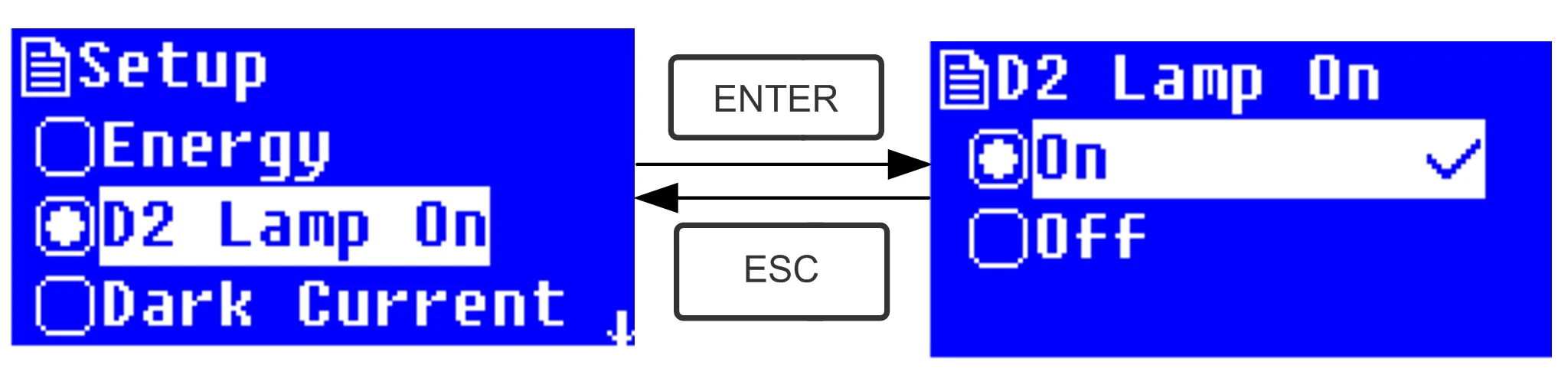
Fig. 4-25
3. Get Dark Current
 When the working condition changes, A dark current calibration is required before any measurement.
Use Arrow key to choose "Dark Current" and press  to confirm. (Fig. 4-26)
Note: Remove the cuvettes from the light path before this action, don't open the lid of the compartment during the course of calibration.
Press  to return when it finishes.
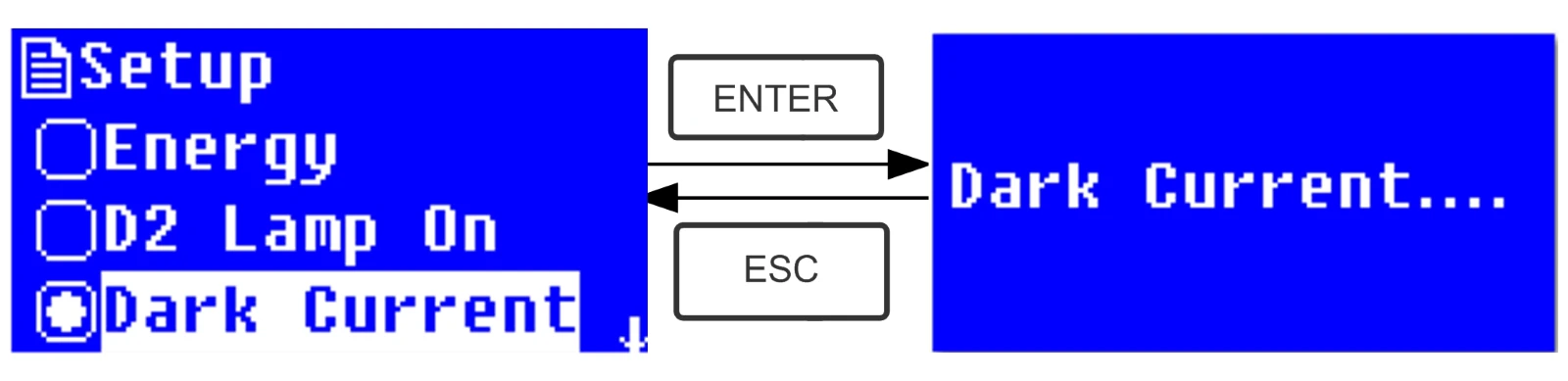
Fig. 4-26
When it finishes, it will display the following words on the screen. (Fig.4-27) If it displays "Dark Current Err", you should check if there's something else in the compartment and repeat this step.
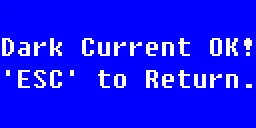
Fig. 4-27
4. Wavelength Calibration
 After some time, the energy of lights would drop off and there will be some but slight influence on the test result. In this case, users can reset the wavelength to compensate. We suggest the users to calibrate the wavelength every one or two months.
Remove all the blocks in the light path and close the lid of the compartment, press Arrow Key to choose "Calibrate WL." and press  to begin the calibration ( Fig. 4-28 ) . The lid of the compartment should not be opened during the calibration.
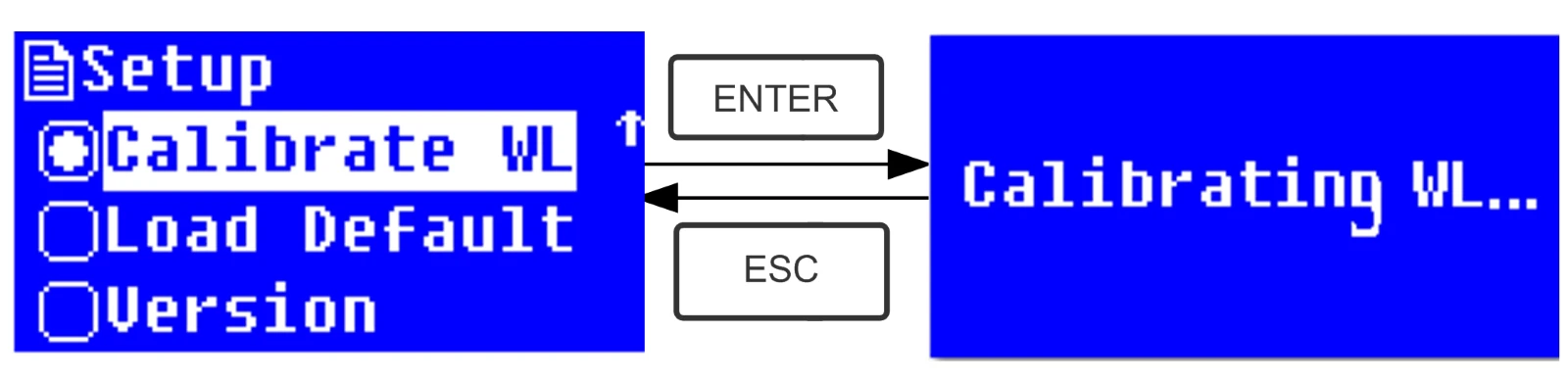
Fig. 4-28
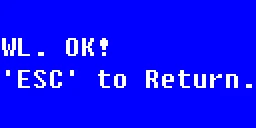
Fig. 4-29
When it finishes, it will display the following words on the screen. (Fig.4-29) If it displays "Wavelength Err", you should check if there's something else in the compartment and repeat this step.
5. Load Default
Press Arrow Key to choose "Load Default" and press  to confirm.(Fig. 4-30), press Arrow Key to choose "Yes" and press
  to confirm.
Then the system will recover the default setting when leave factory. Choose "No" with  pressed to cancel the operation and return.
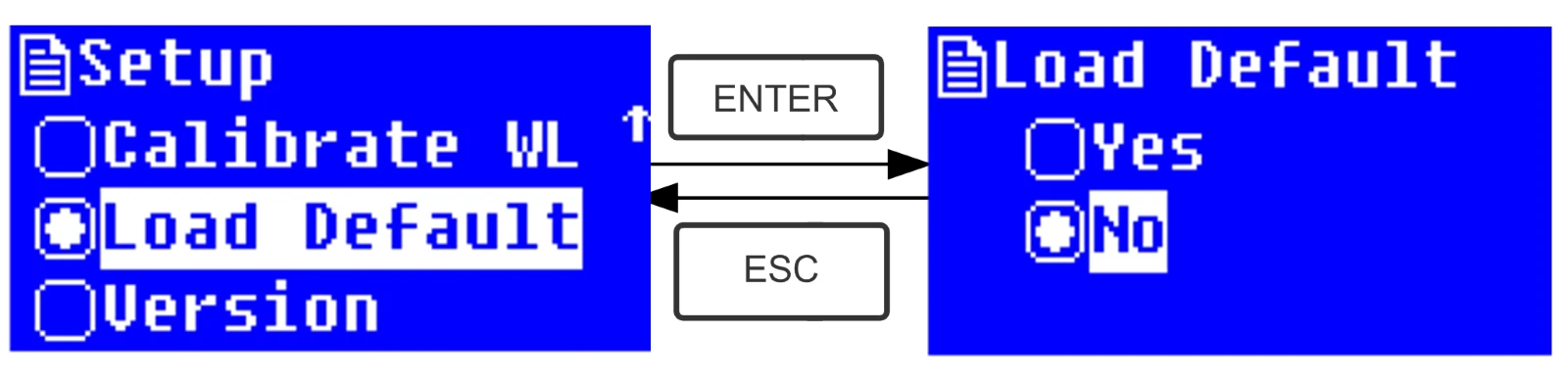
Fig. 4-30
Note: All the saved data and curves would be deleted from the RAM once "Yes" is chosen!
6. Version
Press Arrow Key to choose "Version" and press  to confirm. You'll see the version of the software and hardware. (Fig.4-31). Press
  to return.
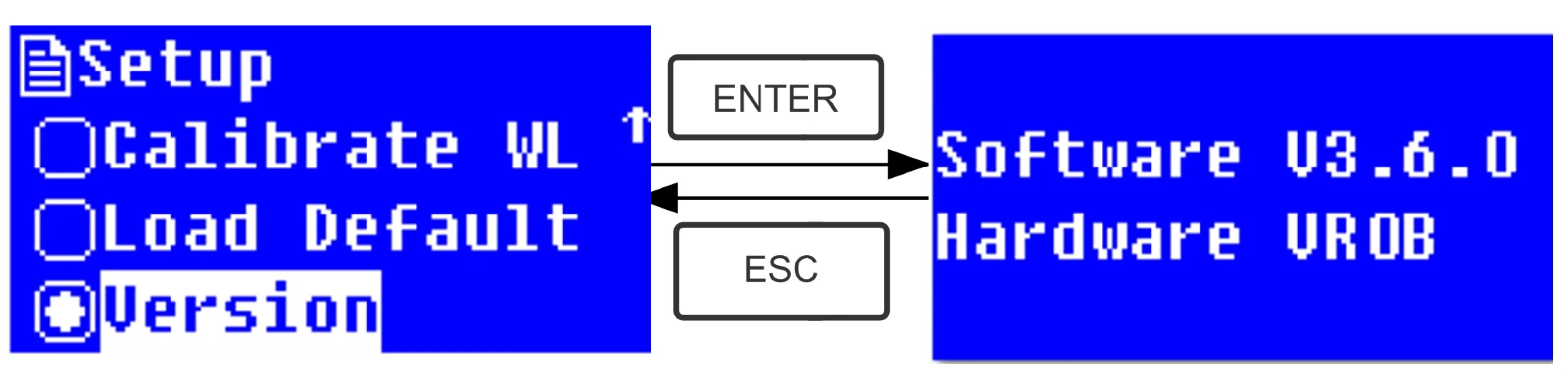
Fig. 4-31
Note: For the reason of update, the version you see on the screen may be different from the above one.
CHAPTER 5 Instrument Maintenance
To keep the instrument work in good condition, constant maintain is needed.
1. Daily Maintain
1) Check the compartment
After measurement, the cuvettes with sample solutions should be taken out of the compartment in time. Or the volatilization of the solution would make the mirror go moldy. Users must pay more attention to the corrosive sample and liquid easy to volatilize. Any solution remains in the compartment should be wiped off immediately.
Surface Clean
2) The cover of the instrument is with paint. Please use wet towel to wipe off the drip on the surface immediately. Organic solution is forbidden to be used to clean the cover. Please wipe off the dirt on the cover timely.
3) Clean the cuvettes
After every test or after a solution change, the cuvettes should be cleaned carefully, or the remains on the surface would cause measuring error.
2. Troubleshooting
1) Dark Current Error when self-test
Possible Cause
Open the lid of the compartment during the course of self-test
Solution
Close the lid of the compartment and switch on the power again.
2) No response after power on
Possible Cause
- Bad contact in power supply
- Fuse melt
Solution
- Improve the contact
- Replace a new fuse
3) Printer not work, printer error
Possible Cause
- No power supply
- Bad contact in power supply
- Bad contact of the data cable
Solution
- Switch on the power supply
- Improve the contact
- Improve the contact
4) No Stable Reading
Possible Cause
- No enough pre-warm
- Glass cuvettes used in UV Range
- No stable Sample
- Much higher sample concentration
- Low voltage or unstable power supply
- Lights defect
- Light used up
Solution
- Increase the pre-warm time
- Use Silicon Cuvettes.
- Improve the sample
- Dilute the sample
- Improve the power condition
- Replace a new lamp
- Replace a new lamp
5) Worse Repeatability
Possible Reason
- Unstable sample
- Cuvettes polluted
Solution
- Improve the sample
- Clean the cuvettes
6) Incorrect reading
Possible Reason
- Dark Current Error
- Worse matching of the cuvettes
Solution
- Re-get the dark current
- Improve the matching of the cuvettes
3. Fuse Replacement
 Danger! Be sure to switch off the power and unplug the socket before replacement!
Step 1: Tools preparation
Prepare a 3x75 Flat Blade screwdriver
Step2:Switch Off the power supply
Switch off the power supply, and unplug the socket.
Step 3: Take out the Fuse Seat
Take out the fuse seat by the screwdriver. (Fig.5-1)
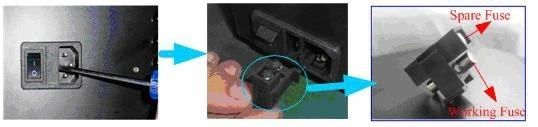
Fig. 5-1
Step 4: Replace a new fuse
Pick out the spare fuse and replace it to the working position. (Fig.5-2)
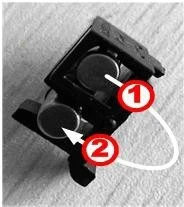
Fig. 5-2
Step 5: Reset the fuse seat
Replace the fuse seat in the power socket
Step 6: Switch on the power
Plug the socket and switch on the power