
Get Price
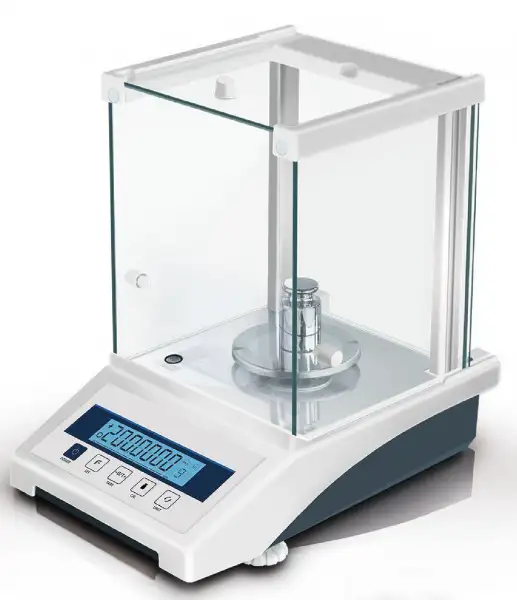
Analytical Balance BFT-1203
- Internal auto calibration (FA-EN)
- Electromagnetic force sensor
- LCD (White back light with black font)
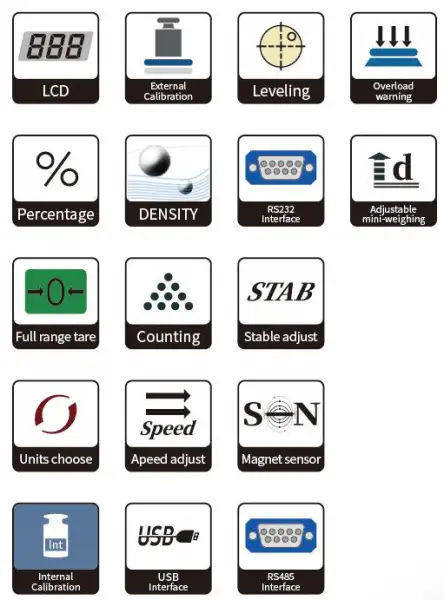
- Tare function / Counting / Unit conversion
- Sensitivity / Speed set / Percentage
- Accumulation function / Peak holding / Upper and lower set
- Dynamic weighing / Net and Gross / Clock function (Option)
- Print function (Baud rate setting, Continuous communication or press communication)
- Up to 3-Year Product Warranty
- US & EU Compliance Standards
- Door-to-Door Shipping
Technical Specifications
Detailed operating and construction parameters for this model.
| Model | BFT-1203 |
| Capacity | 120g |
| Readability | 0.0001g |
| Min weighing | 0.0004g |
| Stable Time | <3s |
| Display | LCD (white back light with black font) |
| Pan size | Φ80mm (Standard) Φ90mm (Option) |
| Operation temp | 5-35°C |
| Repeatability | ±0.0001g |
| Linearity | ±0.0003g |
| Dimension | 305*210*305mm |
| Draft shield size | 175*165*200mm (Inner diameter) |
| LCD Size | 96*24mm |
| Cal.weight | E-External calibration / EN-Internal calibration |
| Interface | RS232 (Standard) USB/Printer(Option) |
| Packing size | 425*310*410mm |
| G. weight | 6.0kg |
| Power | 100-240V 50/60Hz |
Product Features
Key design, performance, usability, and safety advantages.
Accessories For Purchase View compatible optional accessories and additional items available separately.
| Images | Name | Description | Information |
 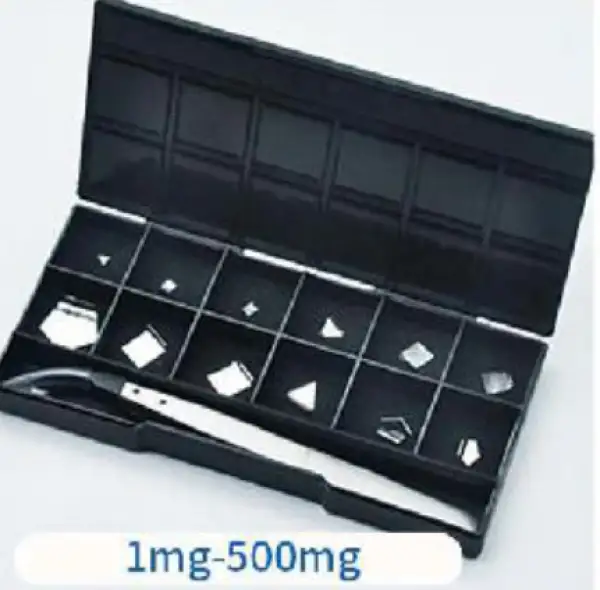 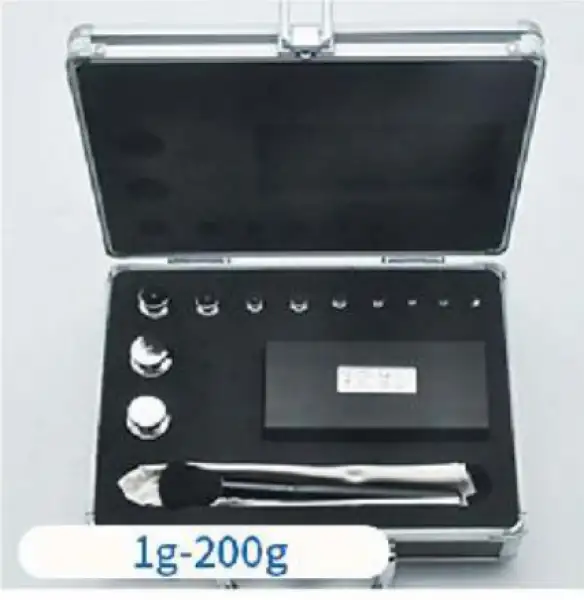 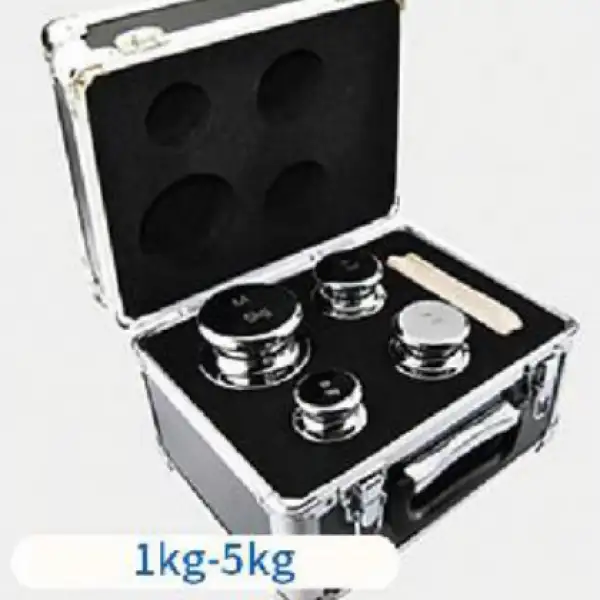 | Weight set | Recommend corresponding accuracy calibration (1mg-20kg) | M1 levelSuitable for 0.1g-0.01g F2 levelSuitable for 0.01g-0.001g F1 levelSuitable for 0.001g-0.0001g E2 levelSuitable for over 0.0001g |
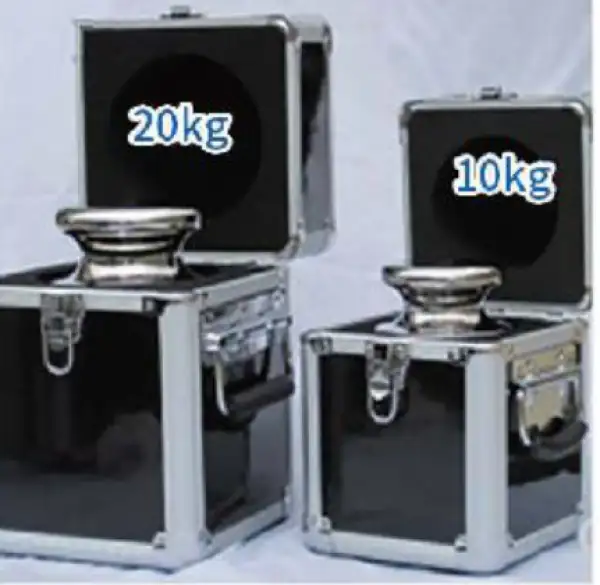 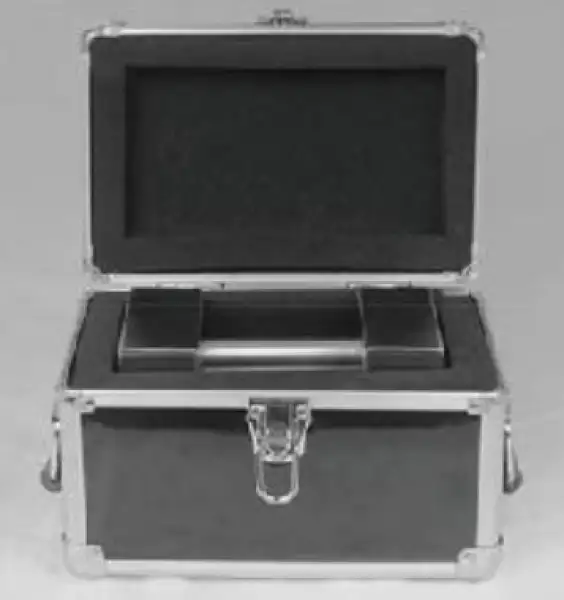 | Weight set | Lock type series weights (5kg-20kg) | M1 levelSuitable for 0.1g-0.01g F2 levelSuitable for 0.01g-0.001g F1 levelSuitable for 0.001g-0.0001g |
Operating Manual View instructions, operating procedures, safety information, and maintenance guidance.
1. About the Balance
2. Installation
2.1 Unboxing
2.2 Working Environment
2.3 Installation
2.4 Keyboard/Display
3. Operation
3.1 Calibration The Balance
3.2. Function Setting
4. Data Output
4.1 Serial Port Connection
4.2 Serial Port parameters
4.3 Output Mode Setting
4.4 Baud Rate Setting
4.5 Frame Data
4. Fault Judgement
5. Maintainence
6. Packing List
1. About the Balance
This manual is used for multifunctional analytical balance.
series multifunctional electronic balance is a new generation product newly developed. Using high-precision electromagnetic force balance sensor. It makes the measurement results more accurate, faster response, and fewer failures. BFT-1207 to BFT-1212 series multifunctional electronic balances have:
• Fast weighing. The speed can be adjusted
• Easy to operate
• Full range tare,clear, accumulate, overload, under load display, fault alarm within the full range;
• Counting function
• Rs232 Interface to connect with computer or printer
• Optional configuration and function expansion
• BFT-1201 to BFT-1206 : External Calibration;BFT-1207 to BFT-1212 : Internal Calibration
Model | BFT-1201 | BFT-1202 | BFT-1203 | BFT-1204 | BFT-1205 | BFT-1206 |
BFT-1207 | BFT-1208 | BFT-1209 | BFT-1210 | BFT-1211 | BFT-1212 | |
Max.CAP | 100g | 110g | 120g | 200g | 210g | 220g |
Accuracy | ||||||
Readability | 0.0001g (0.1mg) | |||||
Repeatability | ±0.0002g | |||||
Liner | ±0.0003g | |||||
Stable time | ≤3s | |||||
Operation Temp | 15°C~35°C | |||||
Pan size | Φ80mm (Φ90mm optional) | |||||
Dimensions | 300X200X295mm | |||||
Power Supply | Power Cord | |||||
Cal | BFT-1201 to BFT-1206: External Calibration(BFT-1207 to BFT-1212: Internal Calibration ) | |||||
G.W | 6.0kg | |||||
N.W | 5.0kg | |||||
Package Size | 425x320x415mm | |||||
Interface | RS232(RS485 and USB made custom) | |||||
Table 1
2. Installation
2.1 Unboxing
Please carefully open the packing box, gently take out the balance and the contents in the box, and save the packing materials for reuse.
(1) BALANCE
(2) PAN
(3)ADAPTER
(4) USER MANUAL
(5) WEIGHING MASS
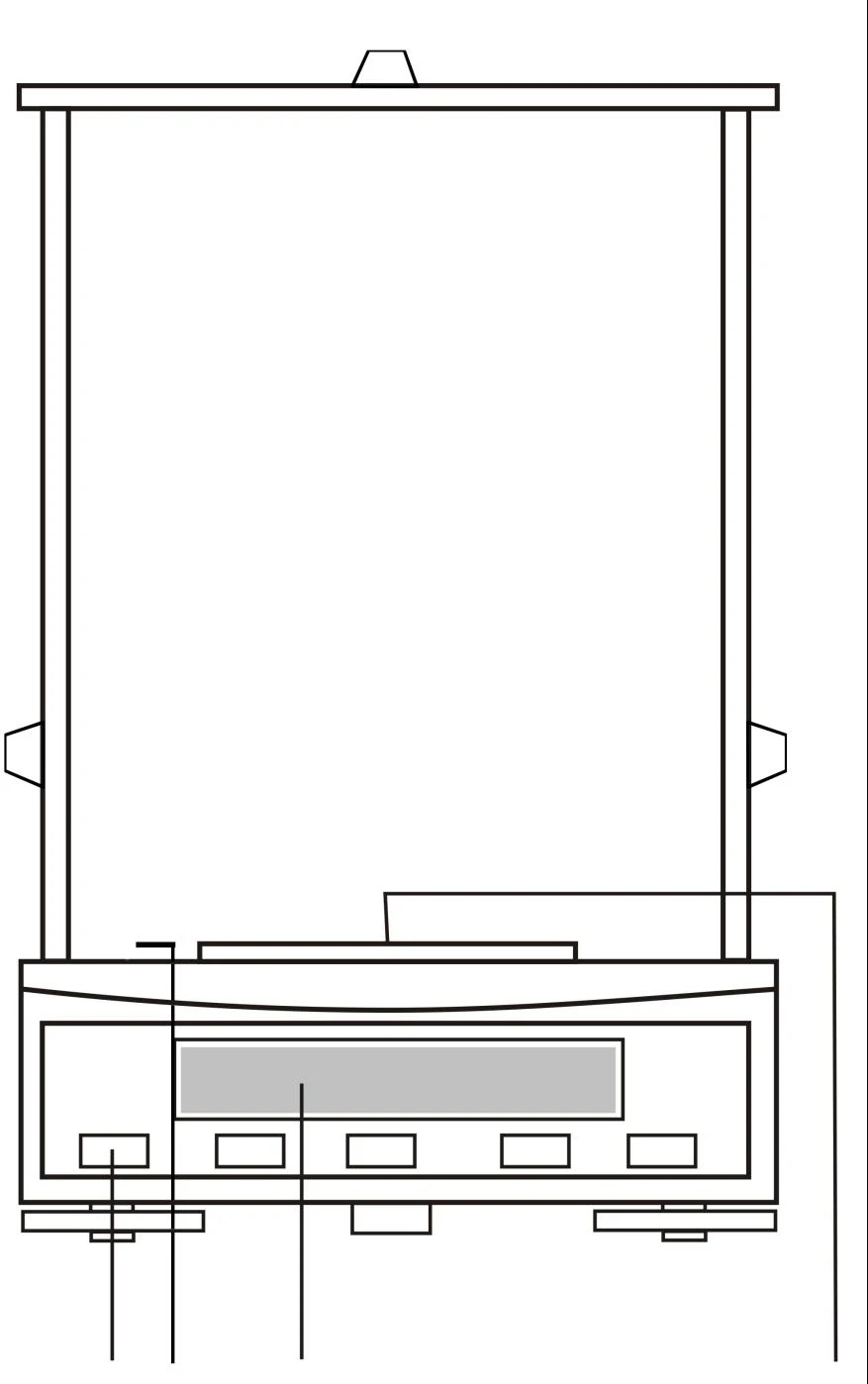
Figure 1
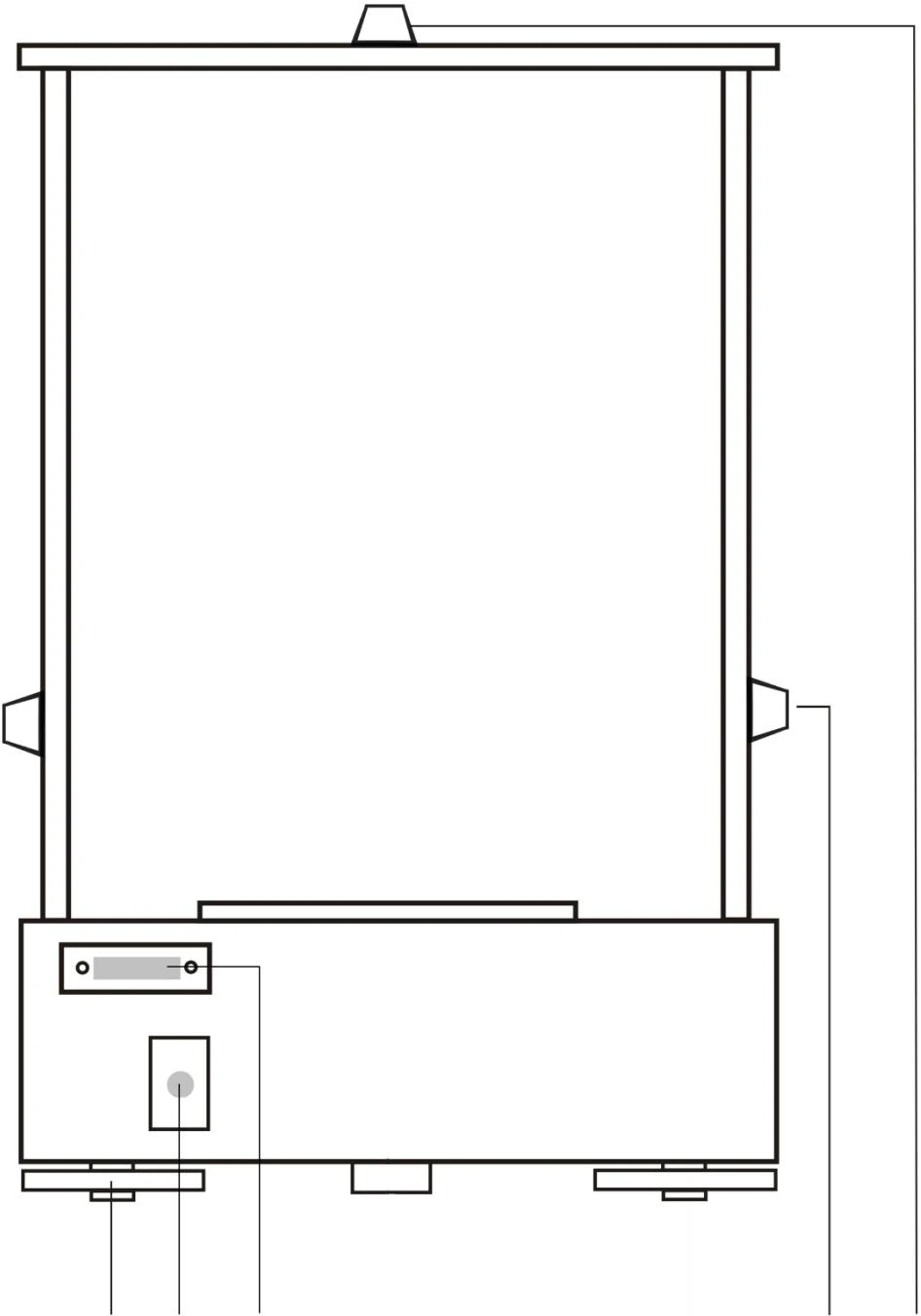
Figure 2
1.Keyboard
2. Bubble
3. Data display window
4 .Pan
5. Adjustable feet
6. Adjustable feet
7.Power outlet
8.Side sliding door
9.Top sliding door
2.2 Working Environment
If conditions do not permit, the working environment should be selected according to the following requirements:
(1) The studio should be kept clean and dry;
(2) The balance should be placed on a stable and fixed workbench (it is recommended to be placed on a marble platform);
(3) The workbench should be far away from doors and windows, so as to reduce the influence of airflow caused by opening windows and doors;
(4) The workbench should be set up where there is little vibration interference. The surroundings of the room are less affected by vibration, and the ideal position of the workbench should be placed;
(5) The balance should be placed in a place that is easy to cause temperature changes,such as avoiding direct sunlight and away from heaters;
(6) Please avoid connecting with large machines or devices with interference, and avoid the interference of other devices;
(7) The dry environment is prone to static electricity, so corresponding measures can be taken to avoid the influence of static electricity on weighing.
(8) Keep the balance away from objects and equipment with magnets or capable of generating magnetic fields;
(9) The balance shall not be used in areas with explosive danger;
(10) Do not use the balance for a long time in a high humidity or high dust environment;
(11) When the balance is transferred from a colder environment to another warmer environment, the moisture in the air will be on the balance.The internal condensation of the weighing system affects the accuracy and reliability of weighing. In order to eliminate the influence of moisture condensation, the balance can be left unplugged at room temperature for 2 hours before use.
2.3 Installation
Put the weighing pan on first, then plug the power adapter into the balance, then plug the power supply (input voltage 220V) and wait for it to turn on. Please place the weighing pan correctly, otherwise a prompt will appear that the weighing cannot be performed.
2.4 Keyboard/Display
The display and keyboard are like icons.
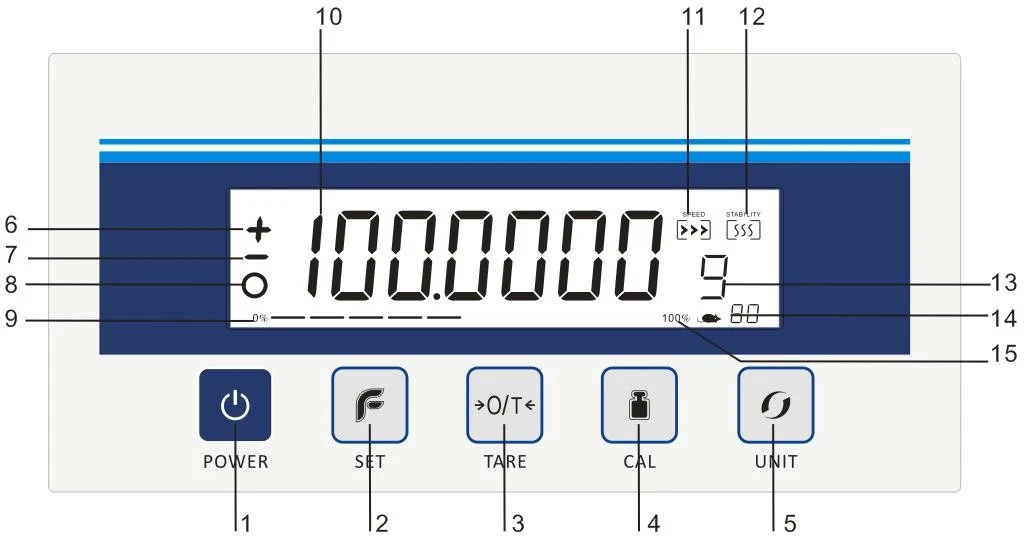
Figure 3
1. POWER
2. SET
3.TARE(→0/T←),CONFRIM
4.CAL
5.UNIT
6.+
7.-
8. STABILITY SYMBOL
9.RANGE PROGRESS BAR 10.WEIGHING
11.SPEED
12.STABILITY
13.UNIT
14.ANIMAL WEIGHING ICON
3. Operation
Before using the balance, the balance should be placed horizontally. Use the adjustment foot screw at the bottom of the balance to adjust the level, so that the bubble in the leveler is adjusted to the center of the circle, and then quickly press the POWER button to turn on the display. To ensure accurate weighing of the balance, please ensure that the balance is fully warmed up (the recommended warm-up time is one hour).
3.1 Calibration The Balance
3.1.01 Cal Weight (0IMLF1)
MODEL | CAL.WEIGHT |
BFT-1201 | 100g |
BFT-1202 | 100g |
BFT-1203 | 100g |
BFT-1204 | 200g |
BFT-1205 | 200g |
BFT-1206 | 200g |
Table 2
3.1.02 Cal.Step
For BFT series balances, please warm up for 1 hour and wait until the balance is stable before calibrating.
Take BFT-1201 as an example, Before calibration, ensure that the scale is empty and free of any loading material.
1) Press "→0←" to tare first, the balance will display 0.0000g,
2) Then press the "CAL" button, the display shows "CAL-200" flashing,
3) At this time, put a "200g" calibration weight on the weighing pan, and after a few seconds, it will display "200.0000g" calibration is complete and can be used.
3.2. Function Setting
3.2.01 Unit conversion
Analytical balance has a UNIT conversion function, which can be selected by UNIT key to meet the requirements of different units. Or enter the menu to select, the specific requirements are as follows:
Step 1.Press"SET"for several seconds until show "UNIT";
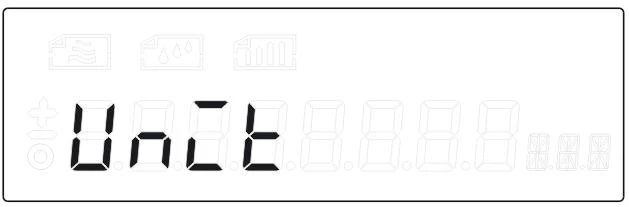
Figure 4
Step 2.Press"O/T"to enter;
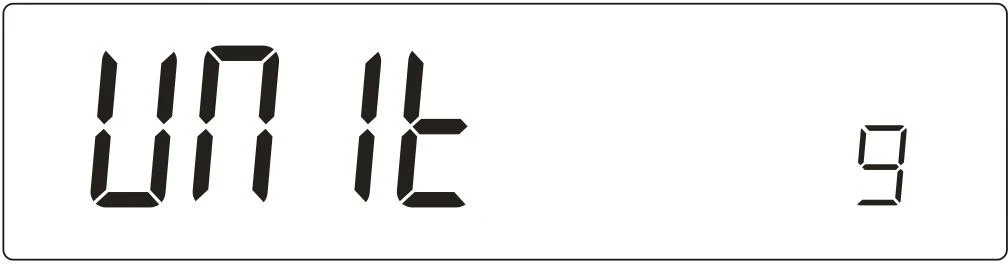
Figure 5
Step 3.Press"UNIT"choose you need,press"O/T"confirm the unit.;


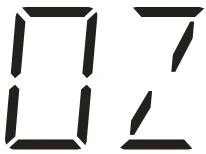
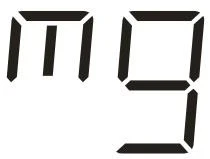
Figure 6
3.2.02 Speed Adjustment
If your environment meets the requirements, you can adjust the speed of the balance to speed up the balance stability time, so as to improve the work efficiency. The specific operation steps are shown below:
1. Press "SET" for several seconds until the display shows "UNIT",The press "SET" until it shows "SPEED";
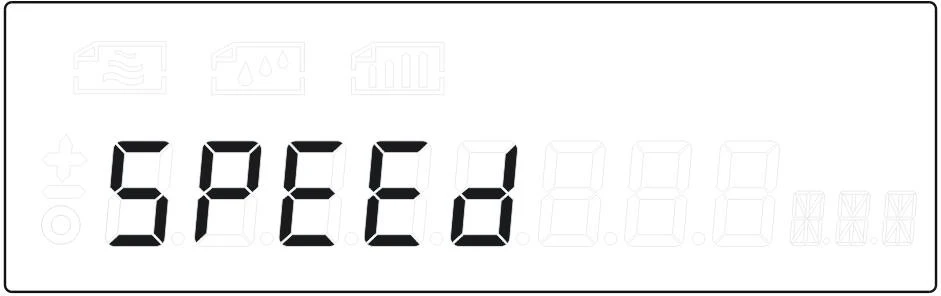
Figure 7
2. Press"O/T"to enter,Press "UNIT" to choose  . lowest speed,increasing in order,
  highest speed,press "O/T'' to confirm;
Note:According to the different using environment, please carefully choose the speed.
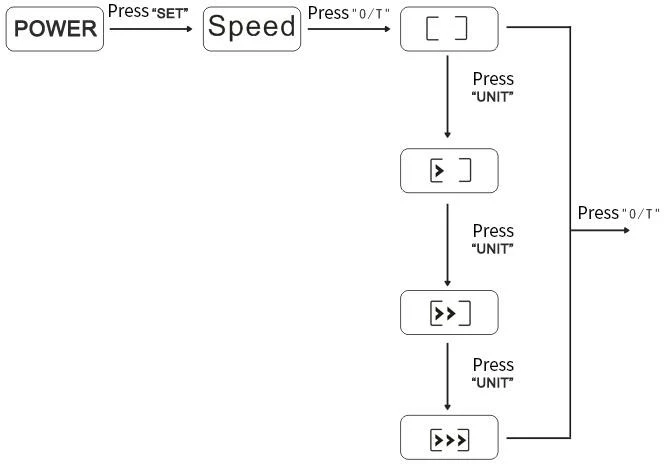
Figure 8
2.2.03 Stability Adjustment
According to different operating environments, the balance can be in a relatively stable state by selecting and adjusting the stability of the balance (it is suggested that the balance can be properly adjusted in the environment to ensure the normal operation of the balance). Specific operation steps can be seen below:
1. Press "SET" for several seconds until the display shows"UNIT", Then press "SET" again. Until it shows" STAB";
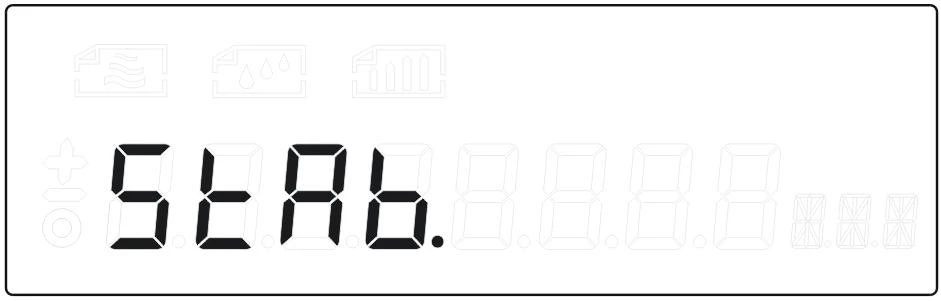
Figure 9
Press "O/T" to enter STAB setting.Press "UNIT" to choose sensitivity, Poorest Sensitivity, High Sensitivity,press 'O/T' to confirm;
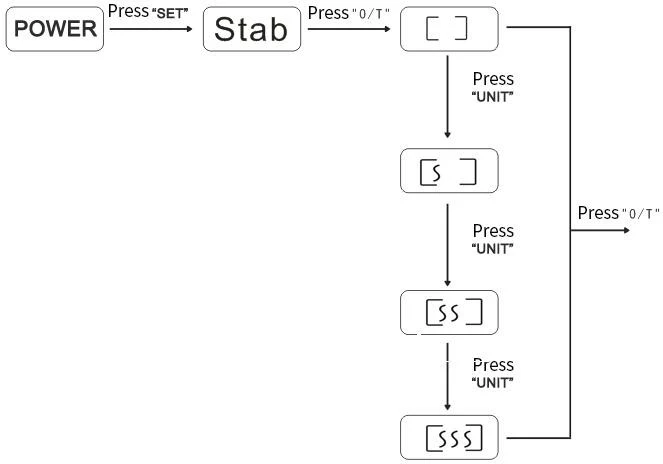
Figure 10
2. Press "O/T" to enter STAB setting.Press "UNIT" to choose sensitivity, Poorest Sensitivity, High Sensitivity,press 'O/T' to confirm;
Figure 11
3.2.04 Counting
There are counting functions in the balance, and you can use this for count the quantity. And please keep the products the same weight, and the minimum weight must be ≥0.5mg.
The details operation as blow:
1. Press "SET" for several seconds until the display shows"UNIT", Then press "SET" again, until it shows"COU";
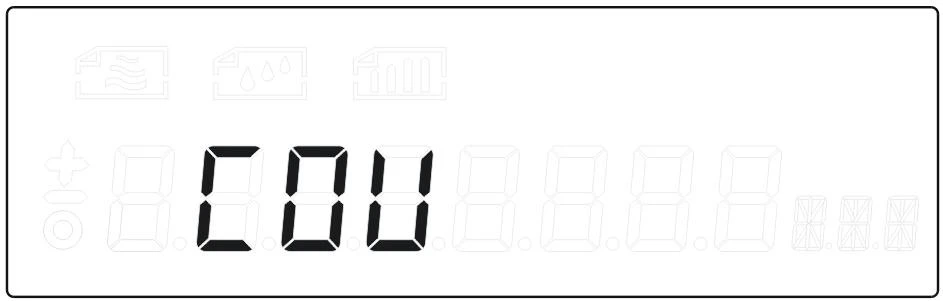
Figure 12
2. Press"O/T" to enter,it shows" COU 5pcs";
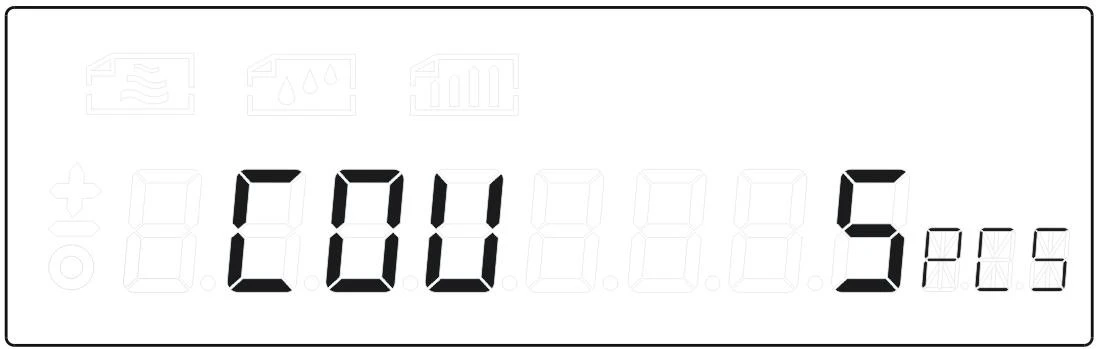
Figure 13
3. Press "UNIT" to choose quantity,and put matched sample quantity,press "O/T" ,it shows;
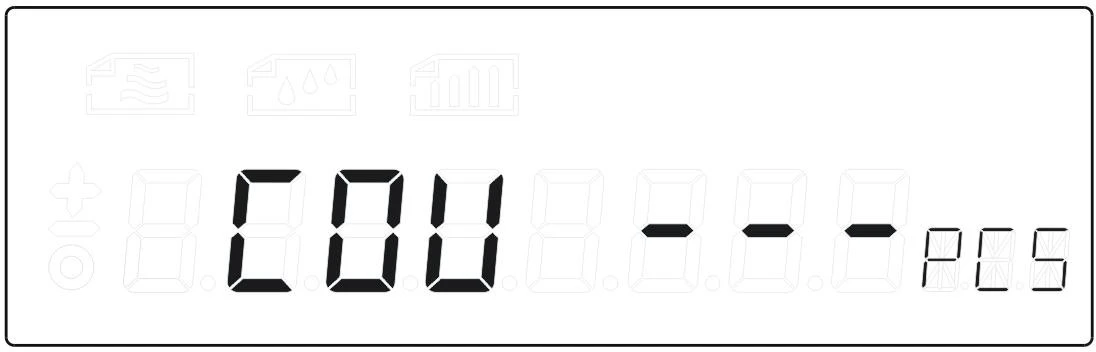
Figure 14
4.When "COU' disappearing,and showing digital,then you will operate;
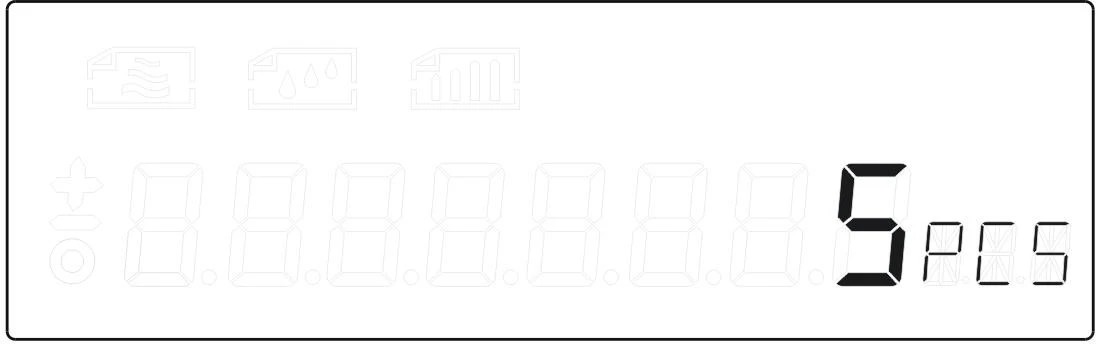
Figure 15
5. After testing,press"SET"to choose"weight,press"0/T"back to weighing
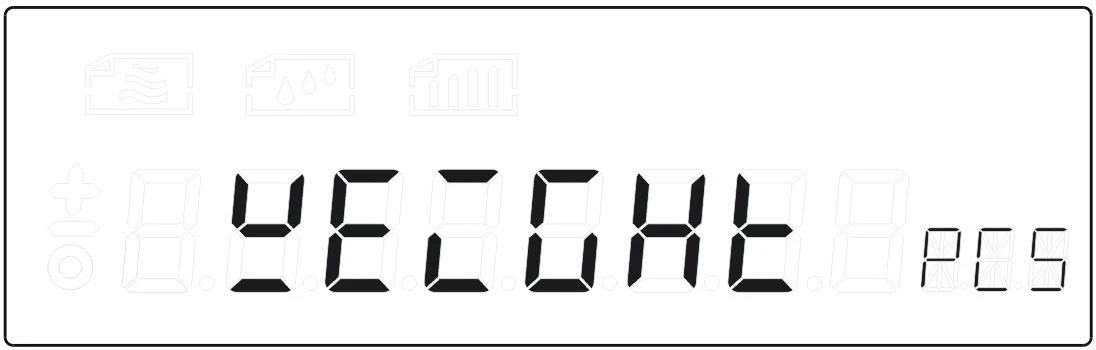
Figure 16
2.2.05 Factory Setting
Flat on the day in set or in the process of using the improper operation, can restore the factory Settings will be all set to return to the factory Settings, so that we can guarantee the balance is suitable for most of the operating practices and use place, when found abnormal scales and unstable, can restore the factory Settings to adjust the stability of the balance. Take FA2004E as an example and perform the following steps:
1. Press "SET" for several seconds ,until the display shows 'UNIT" and Press "SET" again,until it shows"DEFAULT";
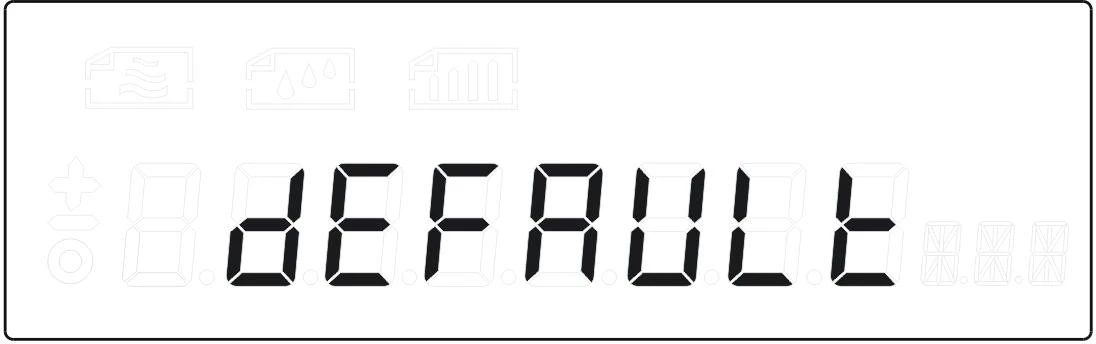
Figure 17
2. Press" O/T"to confirm.The balance appears a prompt tone, and then returns to the boot interface to restore factory Settings.
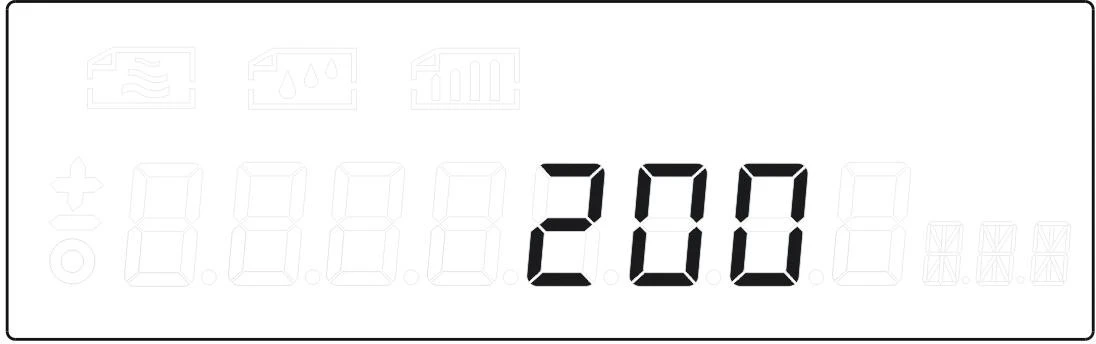
Figure 18
Important: This setting only applies to the balance after setting confusion caused by wrong operation. Do not operate frequently to restore factory Settings.
3.2.06 Peak Hold
This function can keep the maximum value displayed on the screen for a long time, easy for customers to operate when using.
The steps are as below:
1. Press "SET" for several seconds ,Until the display shows "UNIT" and press "SET"again, then until it shows"PEAK";
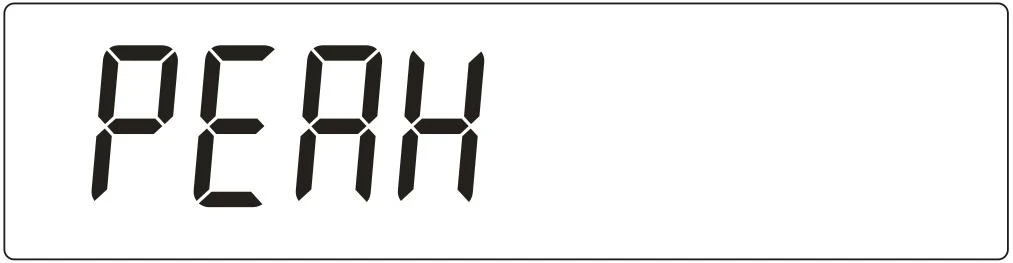
Figure 19
2. Press "O/T" shows" ON/OFF",press "UNIT" to choose,press "O/T" to confirm ON/OFF;
2.2.07 Internal Calibration Time Setting.
1. Press "SET" for several seconds to enter the menu,Until the display shows "UNIT",Press "SET" again,until it shows "AUTOCAL".
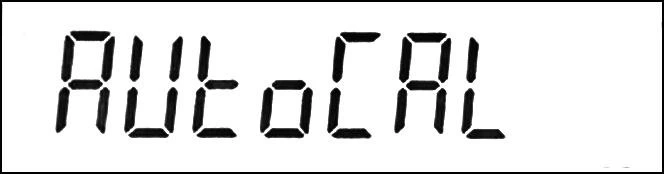
Figure 20
2. Press "O/T" to confirm. Then press "UNIT" to choose the time,It will show "OFF min". "10min"."20min"..."90min".
3. Press "O/T" to confirm the time you need. (The default time is 30 min.)
4. Data Output
4.1 Serial Port Connection
BALANCE | ( 9 Pin) | PC(9 Pin) |
RXD | 2 | 3 |
TXD | 3 | 2 |
GND | 5 | 5 |
Table 3
The steps of connecting to computers:
Click the "start menu "
Program
Attachments
Communication
Hyper-terminal
4.2 Serial Port parameters
(1)Baud rate :1200(Default)
(2) The data format is 10 bits, with one starting bit (0), 8-bit data bit (ASCII code, low first), one stop bit (1);
(3)No Parity
4.3 Output Mode Setting
Press "SET"for several seconds and enter into the Menu. Press "SET"again until the balance shows "PRINT"; Press"0/T"enter into output mode,It will shows "CO-R", "CO-S","ONCE", Press "UNIT"to choose and "0/T"to confirm.
"CO-R":Continuous Output "CO-S":Continuous output when data is stable "ONCE": Single-Point. (When you choose "ONCE",press SET to print.)
Note: The output mode of the balance is continuous(Default Setting).
4.4 Baud Rate Setting
The steps are as below:
1. Press" SET" for several seconds until the display show "UNIT",Then press "SET"
again until it shows"BAUD";
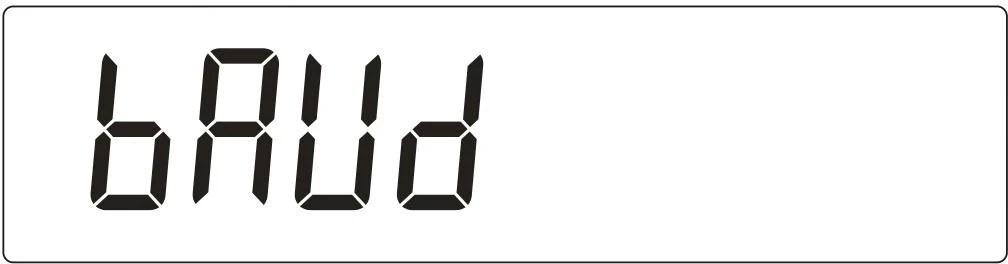
Figure 21
2. Press "O/T" to enter baud rate choosing,it shows " 1200".
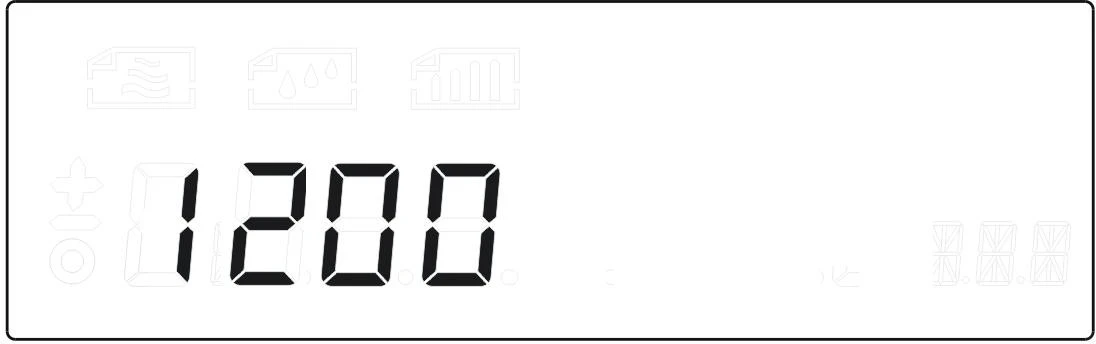
Figure 22
3. Press "UNIT" to choose what you need,press "O/T" to confirm.
4.5 Frame Data
1 | Frame header('E') | Fixed |
2 | Space(0X20) | Fixed |
3 | stable state | * (unstable),Space(stable) |
4 | Symbol | +,-,Space |
5-13 | Weighing data | Decimal point included,Meaningless front 0,print space |
14 | Space | Fixed |
15-17 | Weighing unit | |
18 | 0x0d | Fixed |
19 | 0x0d | Fixed |
Table 4
4. Fault Judgement
FAULT | REASON | EXCLUDE |
No display | Not connected to the power supply; Fuse is broken; Power transformer damage; | Plug in the power line; Replace the fuse; Replacement of power transformer; Contact factory |
Weighing unstable | Bad working environment; The windproof door is not closed properly; There are foreign objects or scratches between the weighing pan and the work surface; The power supply is unstable and exceeds the allowable value; The weighing object is unstable; (Such as absorbing moisture or evaporating) or Plastic particles or powders are electrostatically charged Static electricity generated by dry weather | Improve the working environment and avoid the interference of vibration and airflow; Close the windproof door; Take out the foreign body, turn the weighing pan to prevent scratching; External access 9V DC power adapter; Operate with static eliminator or wristband with static electricity |
The displayed value does not match the actual weight | The balance is not calibrated; Not cleared before weighing; Did not adjust the level; | Calibrate the balance; Press →0← to clear; Use level feet to adjust the level. |
Err. | CAL ERROR | Refer to the manual to re-operate |
Err.1 | COUNTING ERROR | |
Err.2 | PUT PAN WRONGLY | |
Err.3 | OVERLOAD | |
Err.5 | PERCENTAGE SETTING ERROR |
Table 5
5. Maintainence
This series multifunctional electronic balance is a precision mechatronics intelligent measuring instrument, so it must be treated as seriously and carefully maintained as other precision instruments.
1. Do not use sharp objects (such as pencils, ball-point pens) to press keys, only use your fingers to press keys;
2. Be careful not to let objects fall from a high place on the weighing pan, so as not to damage the weighing mechanism;
3. Do not expose the balance to high humidity or dusty environment for a long
time;
4. After the balance is used up, it is best to cover it with a cover to prevent dust intrusion;
5. When weighing powder and fine particles, please use it with the container to avoid dust and particles falling into the load cell under the weighing pan;
6. Please wear gloves when calibrating with weights, and do not take the weights directly with your hands;
7. Keep the balance clean and dry. Matters needing attention when cleaning:
Before cleaning, unplug the power supply;
Do not use corrosive cleaning agents (such as solvents). Use a lint-free soft cloth dipped in water and then some neutral detergent (soap) for cleaning.
When cleaning, be careful not to let water drop into the balance;
After cleaning, wipe the balance carefully with a soft, dry, lint-free cloth.
6. Packing List
NO. | ITEM | NUMBER |
1 | MAIN MACHINE | 1 |
2 | PAN | 1 |
3 | POWER CORD | 1 |
4 | USER MANUAL | 1 |
5 | CERTIFICATE OF CONFORMITY( BFT-1201 to BFT-1206) | 1 |
6 | CAL.WEIGHT | 1 |
7 | PACKAGE | 1 |
Table 6
Note: After unpacking, please keep the balance packaging properly for later maintenance.